PS5 Stuck at 60Hz? 120Hz and VRR Monitor Setup, Step by Step
A 120Hz monitor on your PC does not guarantee 120Hz on your PS5. Work through port, cable, console settings and game support in order, and learn which cases no setting can fix.
QUEST LOG 12 STEPS
- At a glance
- What the PS5 outputs, by resolution
- Does PS5 need HDMI 2.1?
- Step 1: Check the exact HDMI port and its spec sheet
- Step 2: Check the cable
- Step 3: Turn on 120Hz and VRR on the console
- Step 4: Check the game
- Why your monitor does 144Hz on PC but 60Hz on PS5
- Troubleshooting a PS5 stuck at 60Hz: decision tree
- How we researched this
- FAQ
- Sources
MISSION BRIEFINGA 120Hz monitor on your PC does not guarantee 120Hz on your PS5. Work through port, cable, console settings and game support in order, and learn which cases no setting can fix.
Your monitor runs 120Hz on your PC, yet your PS5 is stuck at 60Hz. Before you blame the screen, check four things in a fixed order: the exact HDMI port and its spec sheet, the cable, the console's own settings, and whether the game supports 120Hz or VRR at all. If you are still choosing a screen, start with our PS5 monitor picks.
| Symptom | Possible cause | What to check first |
|---|---|---|
| 1440p monitor, PS5 set to Automatic or 2160p, stuck at 60Hz | The console may be sending a 4K signal that such monitors take only at 60Hz (RTINGS, budget model) | Set Resolution to 1440p (our tip, based on RTINGS) |
| Console offers only 60Hz at 1440p or 4K | The monitor's HDMI input may not offer that mode at that resolution | Monitor spec page and manual, then the console's connected-device readout (resolution, VRR, HDR per Sony) |
| 120Hz on PC, 60Hz on PS5 | The PS5 has only an HDMI output; the PC may use DisplayPort | The HDMI line of the spec sheet; the monitor's menu or manual for a console or HDMI 2.1 mode |
| 4K stuck at 60Hz | Sony asks for an HDMI 2.1 port for 4K 120Hz; an HDMI 2.0-level port cannot carry it in full RGB color | Whether the port supports HDMI 2.1 features, including FRL (Fixed Rate Link, HDMI 2.1's faster signaling) |
| No VRR | Display, resolution or game does not support it | Lab results for your exact model, then the game |
| Black screen or flicker after enabling 120Hz | Sony's fix for video problems: turn off 120 Hz Output; for flicker, lower Video Transfer Rate | Turn off 120 Hz Output; try a lower Video Transfer Rate (it can remove 4K 120Hz) |
At a glance
- Quick fix for some 1440p monitors: set Resolution to 1440p instead of Automatic or 2160p (our tip, based on RTINGS's finding on a budget model).
- Decisive fact: for 4K at 120Hz, Sony asks for a compatible TV, an HDMI 2.1 port and a cable rated for 4K 120Hz.
- 1440p is different: Sony allows 1440p at 120Hz if the display supports it, and our calculation says that signal fits HDMI 2.0 bandwidth in 8-bit color.- VRR: Sony's wording asks for an HDMI 2.1 VRR display; RTINGS reports PS5 VRR on some monitors without HDMI 2.1 and none on others.
- No setting fixes: an HDMI input that never offers 120Hz, or a 60 fps-only game.
What the PS5 outputs, by resolution
VRR and port basics are in our guide to choosing a gaming monitor. Sony documents 120Hz as the PS5's top rate (its own 240Hz monitor is listed as "up to 120 Hz" with a PS5), so a 240Hz panel adds nothing; see is 240Hz worth it.
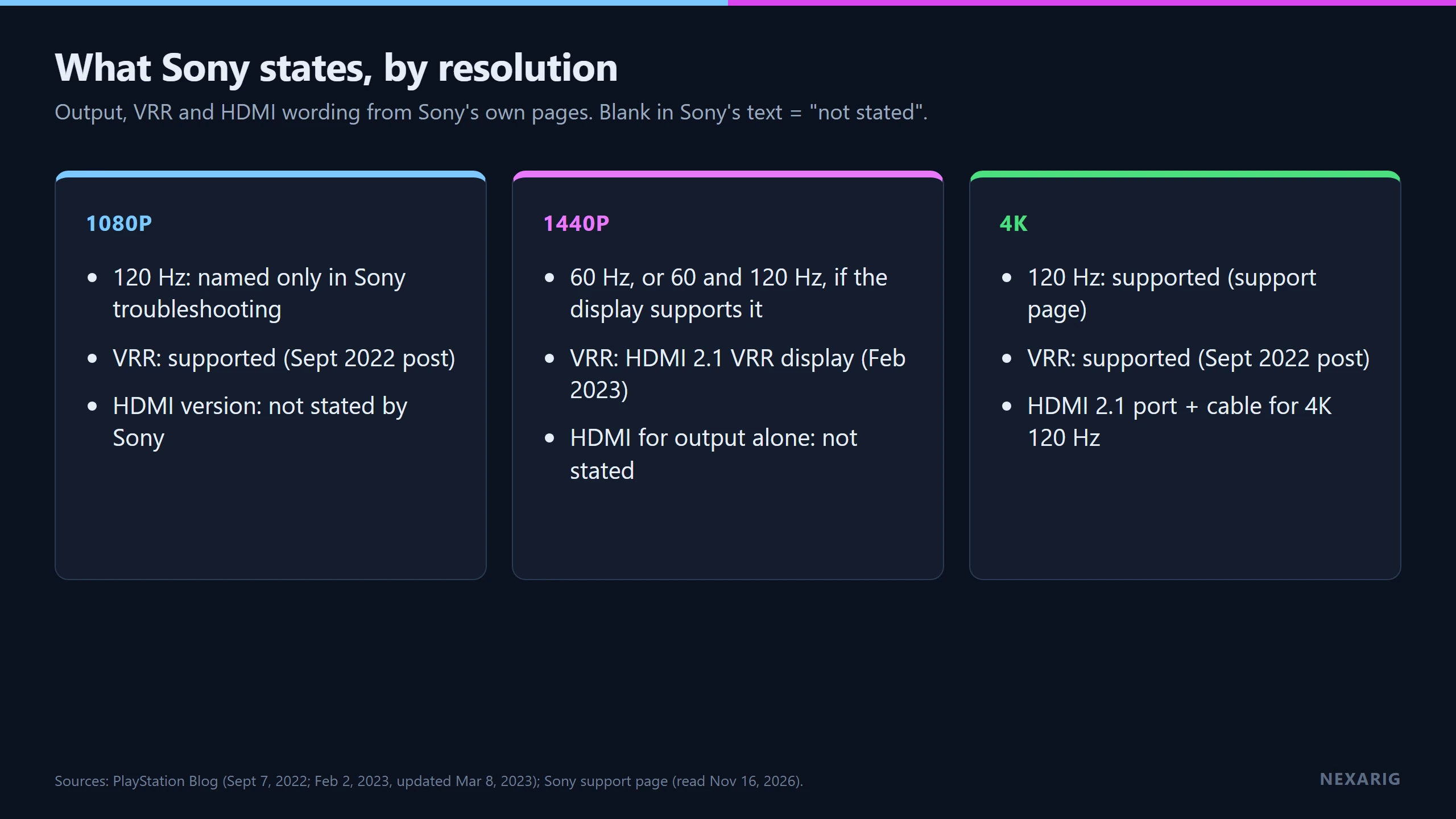
Drawn by NexaRig from Sony's support page and PlayStation Blog posts (2022, 2023).
Text version of the diagram:
| Resolution | 60Hz / 120Hz | VRR | HDMI requirement |
|---|---|---|---|
| 1080p | "1080p 120 Hz" is named as a signal in Sony's troubleshooting text; selection not shown | Supported (PlayStation Blog, September 2022) | Sony does not state |
| 1440p | 1440p/60Hz, or 1440p/60Hz and 120Hz, if the display supports it (blog, September 2022) | Needs a VRR-compatible HDMI 2.1 display (blog, February 2023) | Sony does not state for output alone |
| 4K | 4K 120Hz supported (Sony support page) | Supported (blog, September 2022) | HDMI 2.1 port and 4K 120Hz-rated cable |
Sony's own troubleshooting text names a 1080p 120 Hz signal, so the PS5 can send it; the support page we read does not show how it is selected, so on a 1080p monitor check that its HDMI input lists 120Hz at 1080p. For the 1440p timeline, see 1440p vs 1080p for PS5.
Does PS5 need HDMI 2.1?
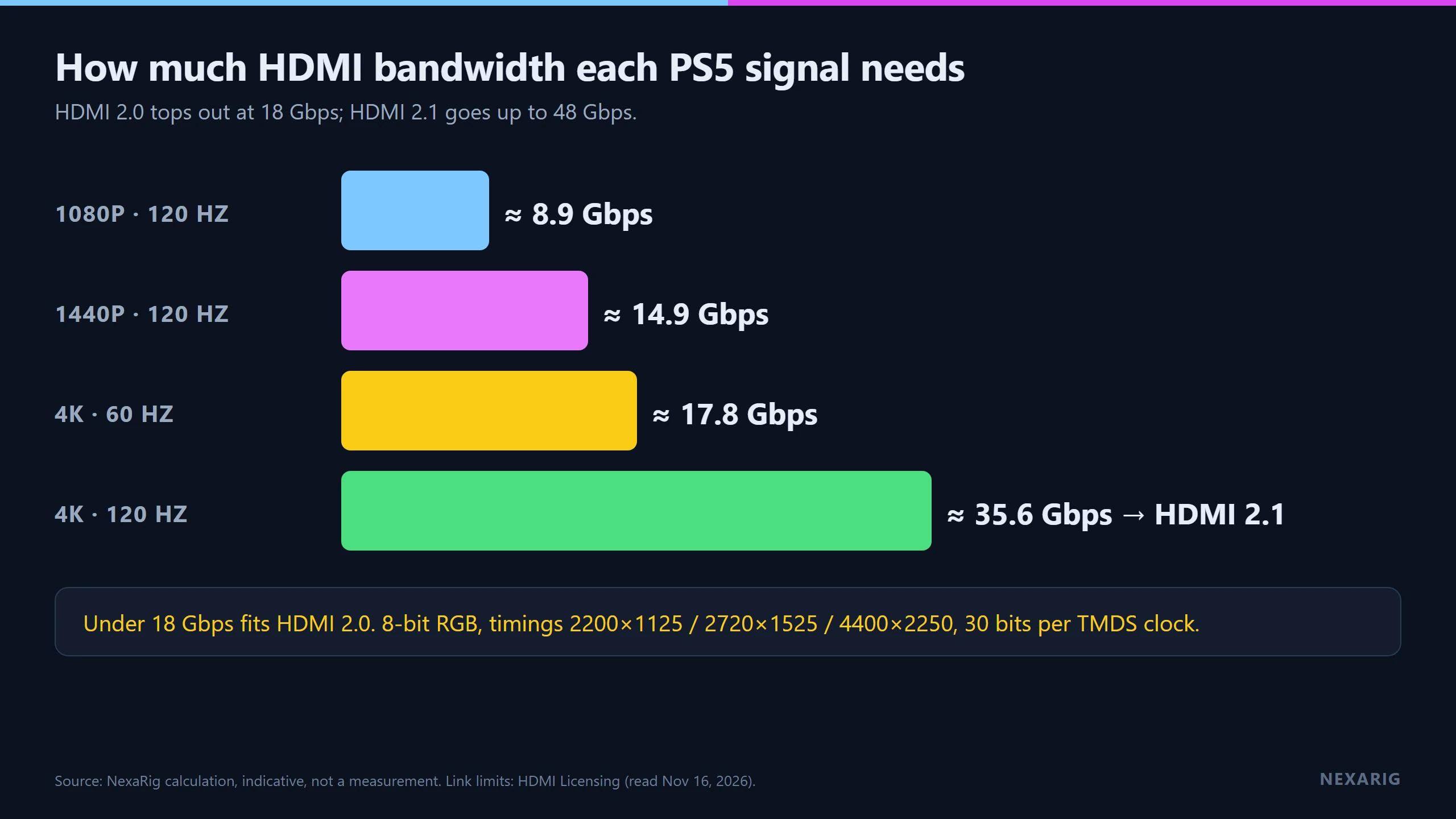
NexaRig calculation: 8-bit RGB, total timings of 2200x1125 (1080p), 4400x2250 (4K, CTA-861) and 2720x1525 (1440p, reduced blanking), 30 bits per clock on HDMI 2.0's older TMDS signaling, against HDMI Licensing's 18 Gbps for HDMI 2.0. Timings are assumed from CTA-861 and reduced-blanking conventions, not taken from a monitor, so the figures are indicative.
For 120Hz
Sony's 4K 120Hz checklist asks for an HDMI 2.1 port; for lower resolutions it states no version. NexaRig calculation (not a measurement):
| Format | Approx. link data rate | Fits in HDMI 2.0 (18 Gbps)? |
|---|---|---|
| 1080p 120Hz | about 8.9 Gbps | Yes |
| 1440p 120Hz | about 14.9 Gbps (about 18.7 Gbps at 10-bit) | Yes at 8-bit; no at 10-bit |
| 4K 60Hz | about 17.8 Gbps | Yes at 8-bit, barely |
| 4K 120Hz | about 35.6 Gbps on the same basis | No in full RGB color; needs HDMI 2.1 (FRL) |
RTINGS (October 14, 2026) describes a budget 1440p monitor in its PS5 list as taking 1440p up to 120Hz or a downscaled 4K signal at 60Hz, which matches our calculation.
The "HDMI 2.1" label is not a guarantee: HDMI Licensing (February 2022) says each HDMI 2.1 feature is optional, and TFTCentral (December 2021) warned that some "2.1" ports are TMDS-only, at HDMI 2.0 level.
For VRR
Sony's 2022 and 2023 posts say "HDMI 2.1 VRR-compatible" displays. RTINGS (October 14, 2026) shows the real-world picture is model by model: it reports VRR with a PS5 on budget 1440p monitors without HDMI 2.1, though one lacks it at 4K 60Hz, and RTINGS also reports no VRR with a PS5 on the AOC Q27G3XMN. Our opinion: HDMI 2.1 is the safe spec; otherwise rely on a lab result for your exact model.
Step 1: Check the exact HDMI port and its spec sheet
Plug into an HDMI input, preferably the HDMI 2.1 one, and confirm the spec sheet lists 120Hz over HDMI at your resolution.
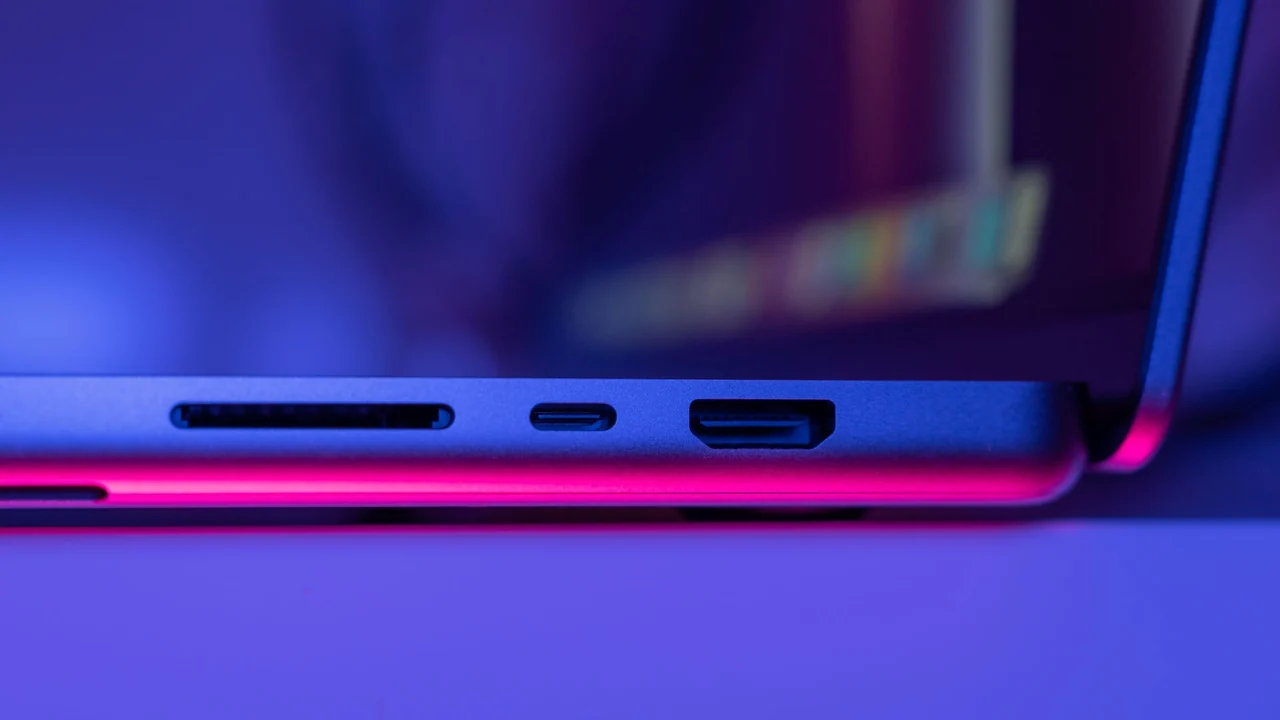
A laptop's ports, shown only to illustrate an HDMI socket; your monitor's layout will differ. Photo: Eric Feng / Pexels (cropped by NexaRig)
| Check | Why |
|---|---|
| Use an HDMI input, not DisplayPort or USB-C | Sony's specification tables for the PS5, PS5 Slim and PS5 Pro list HDMI OUT as the only AV output |
| Use the port the maker lists as HDMI 2.1, if there is one | Sony: "If there is an HDMI port that supports HDMI 2.1, please use it" |
| Read the HDMI line of the spec sheet | Look for 120Hz or 144Hz over HDMI, FRL and VRR, not just "HDMI 2.1". |
Step 2: Check the cable
We found no Sony cable requirement for 1440p at 120Hz, so start with the cable in the PS5 box; for 4K 120Hz, use a certified Ultra High Speed one (our recommendation).
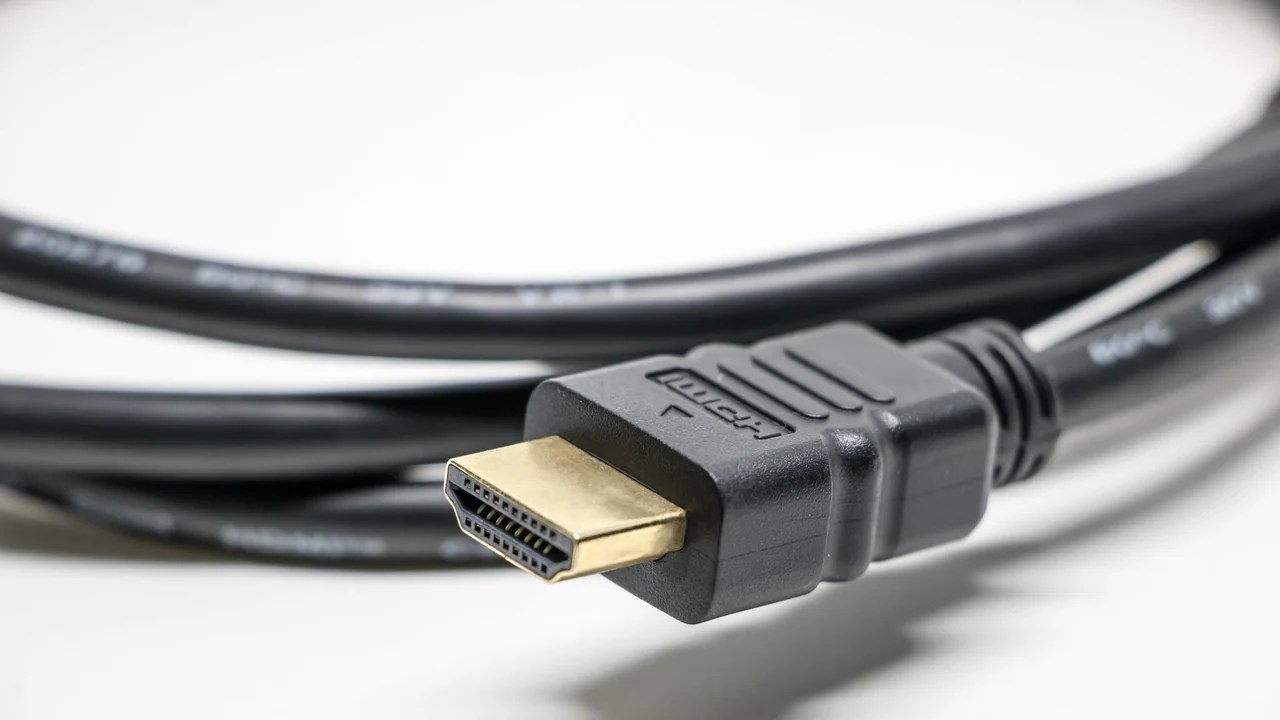
An HDMI cable connector. Photo: Srattha Nualsate / Pexels (cropped by NexaRig)
| Source | Statement |
|---|---|
| Sony | Use the included HDMI cable; for 4K 120Hz troubleshooting, a cable rated for 4K 120Hz |
| HDMI Licensing | Ultra High Speed cables: up to 48 Gbps, 4K at 120Hz; Premium High Speed: up to 18 Gbps |
| HDMI Licensing | Ultra High Speed certification is mandatory, with a scannable QR label; some cables are counterfeit |
Step 3: Turn on 120Hz and VRR on the console
Switch on 120 Hz Output and VRR, set Resolution to suit your monitor, and confirm with Test 1440p Output.
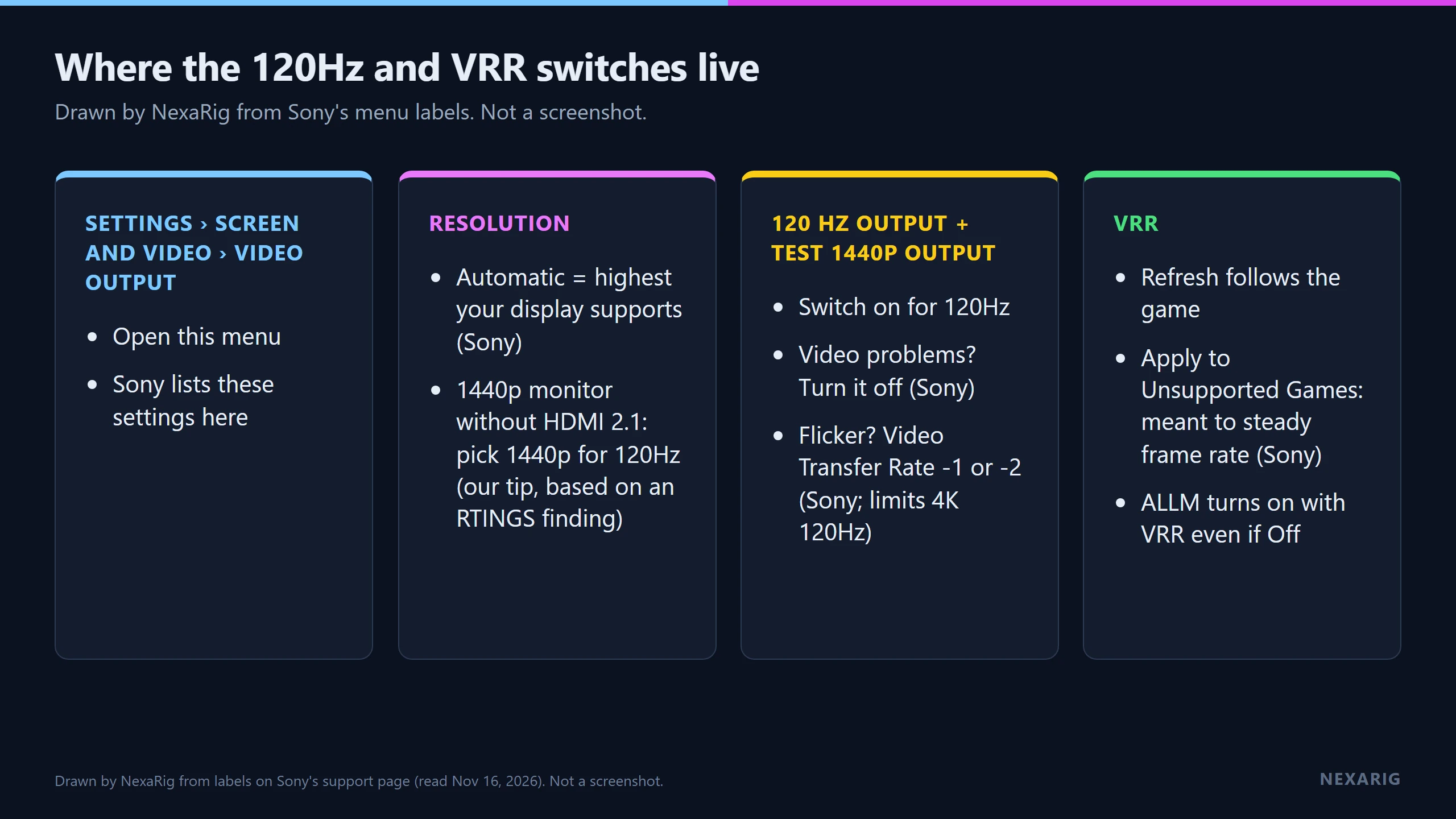
Drawn by NexaRig from labels on Sony's support page (read November 16, 2026).
Path: Settings > Screen and Video > Video Output.
- Information for the Connected HDMI Device shows the device's resolution, VRR and HDR details, per Sony. Our tip: check Current Video Output Signal while a game that offers a 120Hz mode is running; the page does not say when it shows what, and we have not verified what the menu shows outside games.
- Resolution: "Automatic" uses the highest resolution your TV supports. On a 1440p monitor without HDMI 2.1, choose 1440p rather than 2160p or Automatic for 120Hz: our recommendation, drawn from the RTINGS finding above.
- Test 1440p Output: tests SDR and HDR at 60Hz and 120Hz, and VRR.
- 120 Hz Output: a switch to enable 120Hz output; Sony says to turn it off if you see video problems on a monitor.
- VRR: the refresh rate adjusts in real time; on automatically for compatible games (Sony, April 2022). Apply to Unsupported Games is meant to stabilize the frame rate.
- Video Transfer Rate: adjusts the transfer rate for 4K video. For flicker, Sony suggests -1 or -2, which limit output (Sony lists 4K 120 Hz among the limited modes).
Per Sony, ALLM (auto low latency mode) switches on with VRR even if set to Off.
Step 4: Check the game
120Hz and VRR only work in games that support them, so check each game's mode list.
| What Sony says | What it means for you |
|---|---|
| 120Hz applies to "games that support 120 Hz frame rate" | A 60 fps-only game stays at 60 |
| VRR works with TVs and games that support it | Results vary by game, display and visual mode |
| Game Presets: Settings > Saved Data and Game/App Settings > Game Presets > Performance Mode or Resolution Mode | Only games offering those modes; PS5 games only |
Why your monitor does 144Hz on PC but 60Hz on PS5
Check the HDMI line of the spec sheet, then look in the monitor's menu or manual for a console or HDMI 2.1 mode, if it has one. What the sources establish:
- One output: the PS5 has only an HDMI video output (Sony's specification tables); a PC can use DisplayPort.
- "HDMI 2.1" can mean TMDS: Dell lists the U2724DE's HDMI as version 2.1 but "up to QHD 2560 x 1440 120Hz TMDS".
| Model (maker page) | Headline rate | Console figure |
|---|---|---|
| PlayStation 27-inch Gaming Monitor | Up to 240Hz on compatible PCs and Macs | Up to 120Hz on PS5 |
| Gigabyte M28U | 144Hz | "120Hz for Console Game" |
Troubleshooting a PS5 stuck at 60Hz: decision tree
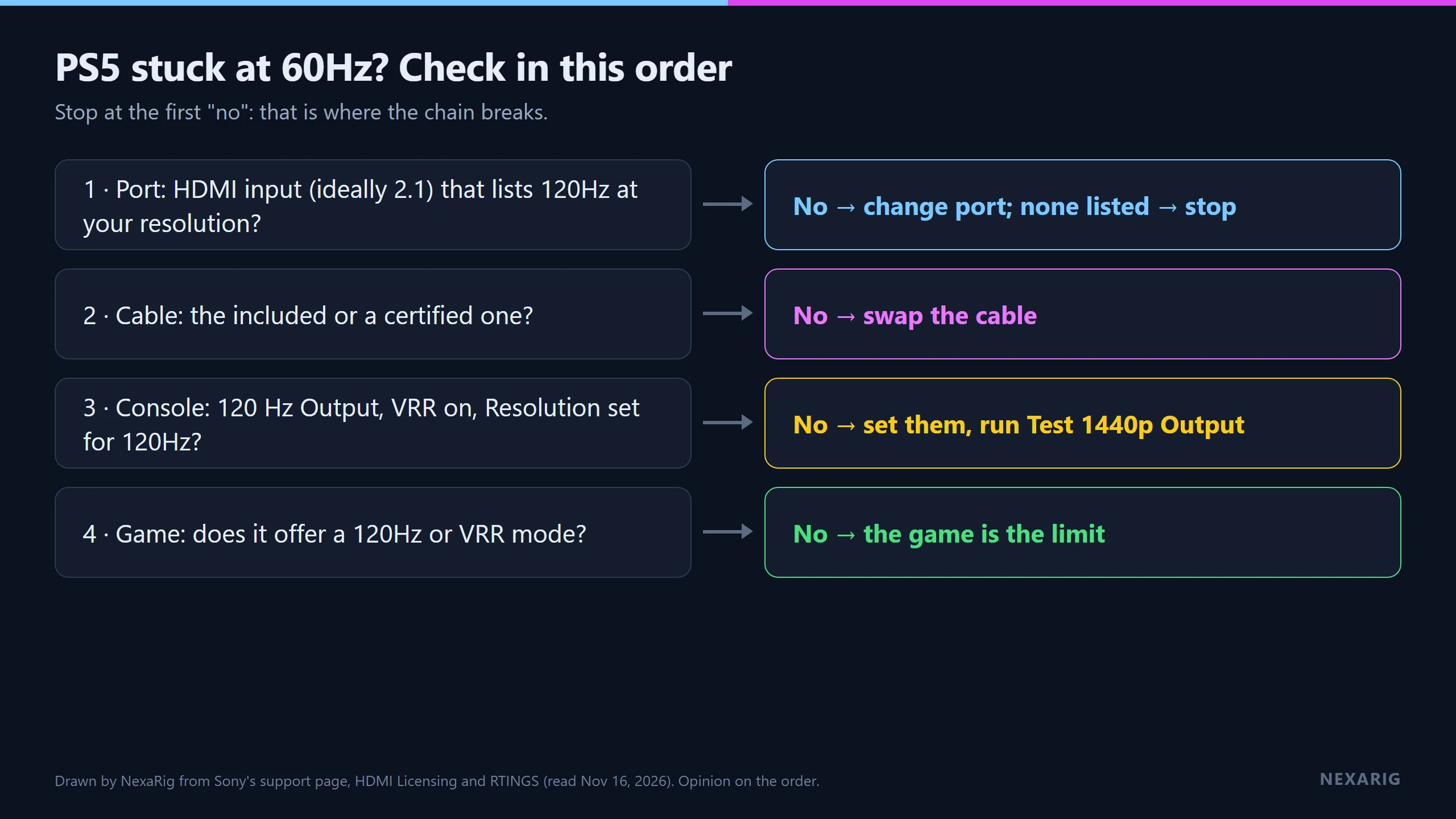
Drawn by NexaRig from Sony's support page, HDMI Licensing and RTINGS. Opinion on the order.
Text version of the diagram:
- Port and spec sheet: on an HDMI input (ideally HDMI 2.1), with 120Hz over HDMI listed at your resolution? No: move the cable; if none is listed, console settings cannot add it, so try another resolution or monitor.
- Cable: included or certified? No: swap it.
- Console settings: 120 Hz Output on, VRR on, Resolution set for 120Hz? No: switch them on, run Test 1440p Output.
- Game: a 120Hz or VRR mode? No: the game is the limit.
How we researched this
On November 16, 2026 we read the pages listed below, and the public parts of RTINGS pages. What we did not do: test any PS5, monitor or cable, open the PS5 menus, verify what values each menu offers, or check EDID behavior. RTINGS's results tables are members-only, and HDMI Licensing now presents HDMI 2.2 on undated pages.
FAQ
Does PS5 need HDMI 2.1 for 120Hz?
For 4K at 120Hz, yes: Sony's support page asks for an HDMI 2.1 port. For 1440p, Sony states no HDMI version, and our calculation says the signal fits HDMI 2.0 bandwidth at 8-bit color, if the monitor offers 120Hz over HDMI.
Can VRR work without HDMI 2.1?
Sony's wording asks for an HDMI 2.1 VRR display. RTINGS reports PS5 VRR on some monitors without HDMI 2.1 and not on others.
Can the PS5 output 144Hz?
Sony documents 120Hz as the top rate: its own monitor is listed as "up to 120 Hz" on PS5, and its support page mentions no higher rate. We found no Sony statement that rules out 144Hz in general.
Why does my monitor do 144Hz on PC but 60Hz on PS5?
See the section above for what to check.
Sources
All accessed November 16, 2026.
- Sony Interactive Entertainment, "How to change PS5 console resolution" (undated). https://www.playstation.com/en-us/support/hardware/ps5-4k-resolution-guide/
- PlayStation Blog, "Variable refresh rate support for PS5 is rolling out this week," April 25, 2022. https://blog.playstation.com/2022/04/25/variable-refresh-rate-support-for-ps5-is-rolling-out-this-week/
- PlayStation Blog, "New PS5 system software update is out globally today," September 7, 2022. https://blog.playstation.com/2022/09/07/new-ps5-system-software-update-is-out-globally-today/
- PlayStation Blog, "PS5 beta introduces Discord voice chat, VRR support for 1440p and more," February 2, 2023 (updated March 8, 2023). https://blog.playstation.com/2023/02/02/ps5-beta-introduces-discord-voice-chat-vrr-support-for-1440p-and-more/
- Sony, "How to customize game presets on PS5 consoles" (undated). https://www.playstation.com/en-us/support/games/how-to-customize-game-presets-on-ps5-consoles/
- Sony, PS5 (CFI-10XXA), PS5 Slim (CFI-20XX) and PS5 Pro (CFI-71XX) Safety Guides, "Specifications" (undated PDFs). https://www.playstation.com/content/dam/global_pdc/en/corporate/support/manuals/ps5-docs/1000a/CFI-10XXA_PS5_Safety_Guide$en.pdf · https://www.playstation.com/content/dam/global_pdc/en/corporate/support/manuals/ps5-docs/2000ab/CFI-20XX_PS5_Safety_Guide_Web$en.pdf · https://www.playstation.com/content/dam/global_pdc/en/corporate/support/manuals/ps5-docs/7100/CFI-71XX_PS5_Safety_Guide_Web$en.pdf
- PlayStation, 27" Gaming Monitor (undated). https://www.playstation.com/en-us/accessories/27-inch-gaming-monitor/
- HDMI Licensing, blog post on HDMI 2.1 features, February 6, 2022. https://www.hdmi.org/blog/detail/139
- HDMI Licensing, cable resources (undated). https://www.hdmi.org/resource/cables
- HDMI Licensing, Ultra High Speed cable certification (undated). https://www.hdmi.org/spec2sub/ultrahdmicables
- HDMI Licensing, HDMI 2.0 press release, September 4, 2013. https://www.hdmi.org/press/bodydetails/24
- TFTCentral, "When HDMI 2.1 isn't HDMI 2.1," December 13, 2021. https://tftcentral.co.uk/articles/when-hdmi-2-1-isnt-hdmi-2-1
- RTINGS, "The Best Monitors For PS5" (updated October 14, 2026). https://www.rtings.com/monitor/reviews/best/ps5
- Gigabyte, M28U specifications (undated). https://www.gigabyte.com/us/Monitor/M28U/sp
- Dell, UltraSharp 27 Thunderbolt Hub Monitor U2724DE (undated). https://www.dell.com/en-us/shop/dell-ultrasharp-27-thunderbolt-hub-monitor-u2724de/apd/210-bksj/monitors-monitor-accessories
This article is based on sourced research, without direct testing by NexaRig. How NexaRig labels its articles.
NEXT // CONTINUE YOUR RUN