How to Choose a Gaming Monitor: Start With Your GPU or Console
Start with what your PC or console can actually output, then work through resolution, refresh rate and VRR, size, panel type and ports, in that order.
QUEST LOG 15 STEPS
- At a glance
- First, what your PC or console can actually output
- Check 1: resolution
- Check 2: refresh rate and VRR
- Check 3: screen size and viewing distance
- Check 4: panel type
- Check 5: ports and cables
- How to choose a gaming monitor for your setup
- Who should skip a new monitor
- What to ignore
- Checklist before you buy
- How we researched this
- FAQ
- Limitations and points to verify
- Sources
MISSION BRIEFINGStart with what your PC or console can actually output, then work through resolution, refresh rate and VRR, size, panel type and ports, in that order.
This article contains affiliate links.
How to choose a gaming monitor: check your GPU or console first, then five specs in order: resolution, refresh rate and VRR, size, panel and ports. That way you don't pay for pixels or hertz your machine can't use.
| Your machine | Start from | Watch out |
|---|---|---|
| Mid-range PC | 27-inch 1440p, 144 Hz or more, VRR | Your card must hold frames at 1440p |
| PS5 | 1440p or 4K, HDMI 2.1, VRR | Refresh above 120 Hz is wasted on the console |
| PC and console on one screen | HDMI 2.1 inputs plus DisplayPort | More ports can mean a higher price |
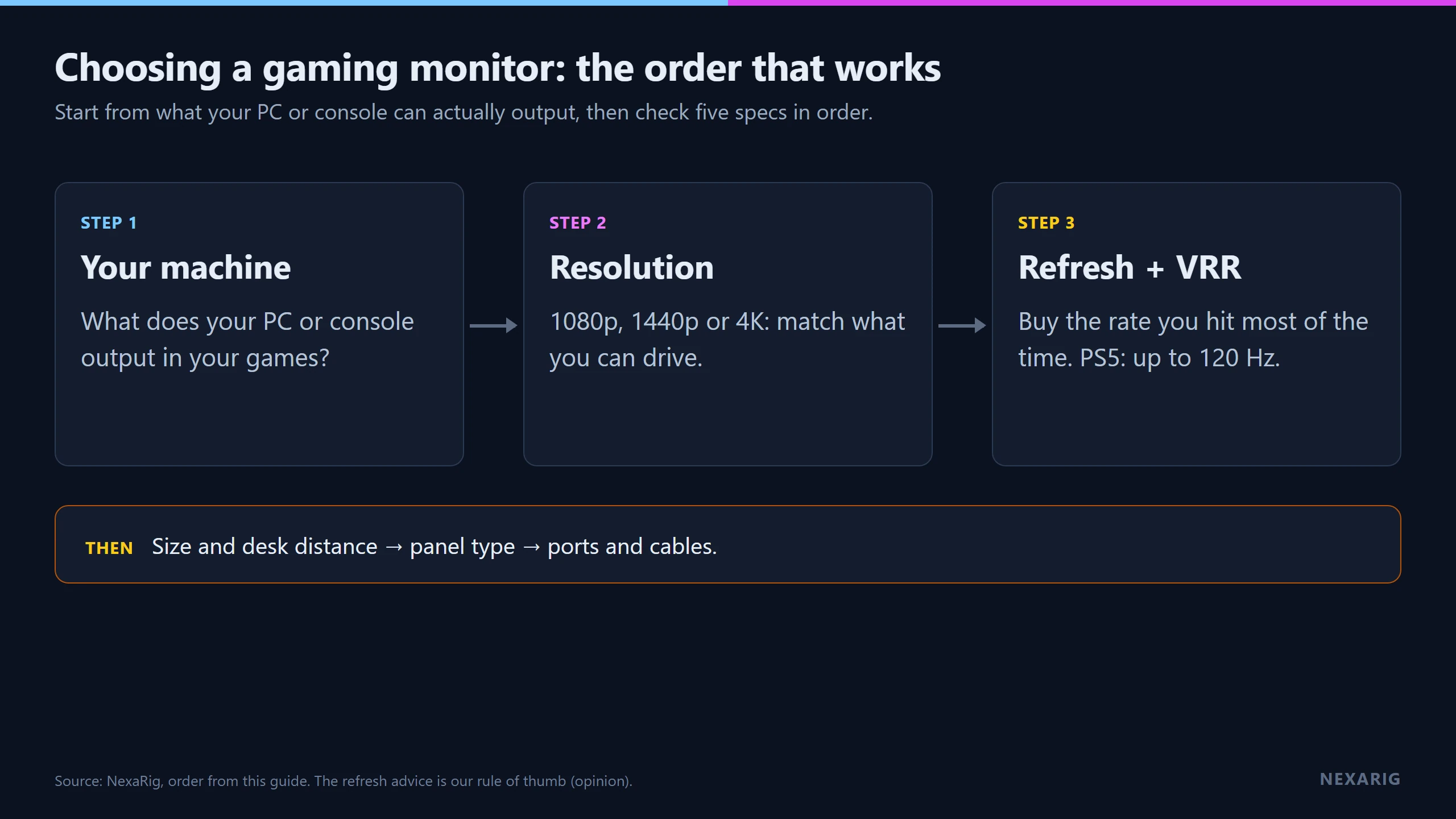 Drawn by NexaRig from the order in this guide; the refresh advice is our rule of thumb.
Text version of the diagram: start from the resolution and frame rate your PC or console reaches in your games, not the maximum on the box; then check resolution, refresh rate and VRR, size, panel, and ports and cables.
At a glance
- Biggest trap: a headline refresh rate that only works on one input. AOC lists the Q27G3XMN at 180 Hz, but 144 Hz at 1440p over HDMI 2.0.
First, what your PC or console can actually output
A monitor can only show what your machine sends, so note the resolution you play at and the frame rate you usually hold. On a console, the console decides. Sony's support page says the PS5 can test 1440p output (SDR or HDR, at 60 Hz or 120 Hz, with VRR) and also supports 4K at 120 Hz over HDMI 2.1. Results vary by display.
| Your machine | What to find out | Why it matters |
|---|---|---|
| Gaming PC | Typical frame rate at your target resolution in your main games | Sets how much refresh rate you can use |
| PS5 family | Which modes your games offer (60 or 120 Hz, VRR or not) | Sony's output options depend on the display (Sony support) |
| Xbox Series X and S | Output modes in Microsoft's specs | Xbox.com lists up to 120 fps and HDMI VRR on both, each with one HDMI 2.1 port; it depends on the game |
| Switch 2 | Output modes in Nintendo's specs | In TV mode, 4K at up to 60 fps and 120 fps at 1080p or 1440p, with HDR10 and VRR up to 120 Hz (Nintendo); it depends on the game |
Already know you want a PS5 screen? Our PS5 vs PS5 Pro comparison covers the consoles themselves: PS5 vs PS5 Pro.
 Check what your GPU or console outputs before the cable and port. Photo: Srattha Nualsate / Pexels (cropped by NexaRig).
Check 1: resolution
Choose the resolution your machine can feed at the frame rate you want. Each step up asks your graphics card for more work per frame.
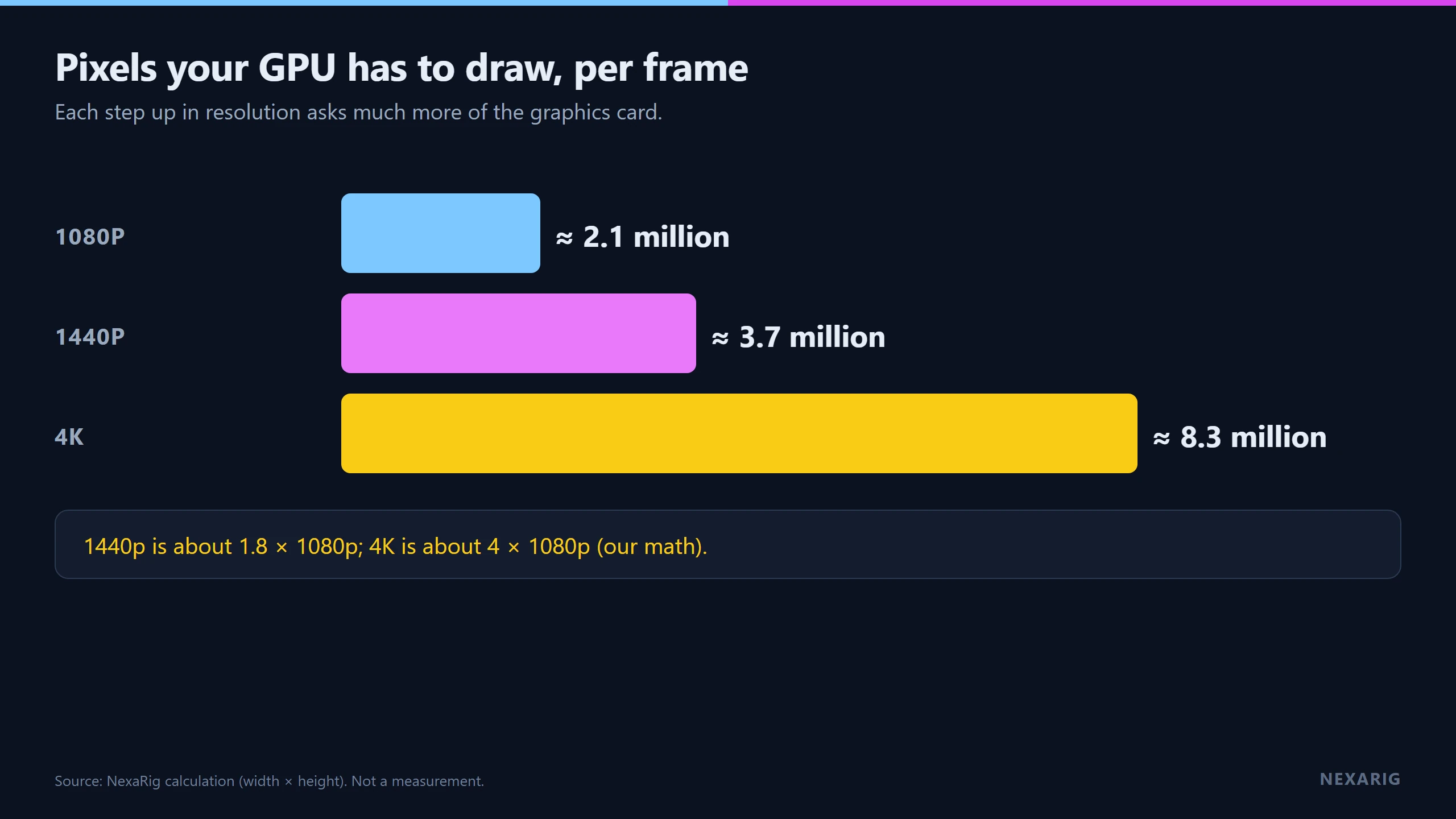 Our math (width × height). Not a measurement.
Text version of the diagram: 1080p is about 2.1 million pixels, 1440p about 3.7 million and 4K about 8.3 million.
1440p is the usual meeting point for a mid-range or better graphics card, while 1080p suits modest hardware and 4K asks for a strong one.
Check 2: refresh rate and VRR
Pick a refresh rate your machine can get close to, then make sure the monitor supports VRR.
| Refresh rate | Time per frame (our math: 1000 ÷ hertz) |
|---|---|
| 60 Hz | about 16.7 ms |
| 120 Hz | about 8.3 ms |
| 240 Hz | about 4.2 ms |
A higher number only helps if your game produces frames to fill it. PlayStation's monitor page lists up to 120 Hz on a PS5, so a console-only player has little reason to pay for more. Our rule of thumb (opinion, not a measured threshold): buy the refresh rate you hit most of the time, not your best scene. If you hold about 90 fps at 1440p, a 144 Hz screen with VRR covers that range; nearer 144 fps, a 165 or 180 Hz screen starts to make sense.
VRR (variable refresh rate) lets the screen follow the game's frame rate instead of running at a fixed rate, which can reduce visible tearing when frame rates fluctuate. On PC it appears as AMD FreeSync or Nvidia G-Sync Compatible; on PS5 it is HDMI VRR and needs a game that supports it.
Check 3: screen size and viewing distance
Match size to how far you sit, then to your resolution. Our budget gaming setup guide has the ergonomics: OSHA recommends 20 to 40 inches between your eyes and the screen, with the top of the display at or slightly below eye level.
Size and resolution work together through pixel density. We calculated these pixels-per-inch figures ourselves; they are not manufacturer specs:
| Size and resolution | Pixels per inch |
|---|---|
| 24 inches, 1080p | about 92 |
| 27 inches, 1080p | about 82 |
| 24 inches, 1440p | about 122 |
| 27 inches, 1440p | about 109 |
| 27 inches, 4K | about 163 |
27 inches at 1080p is softer than 24 inches at 1080p; 27 inches at 1440p is denser than a 24-inch 1080p screen. Measure your desk depth before ordering a bigger panel.
 Desk depth and viewing distance matter as much as the panel itself. Photo: minhphuc .workspace / Pexels (cropped by NexaRig).
Check 4: panel type
Choose the panel for what you do most. These are general characteristics; models vary.
| Panel | Typical strength | Typical weak spot |
|---|---|---|
| IPS | All-rounder, good viewing angles | Contrast |
| VA | Deeper blacks | Fast-motion behavior differs by model |
| OLED | Per-pixel light, strong contrast | Burn-in and warranty terms vary by model |
HDR labels vary a lot between models, so read the exact model's spec page. Response time: look for independent measurements, not the vendor's 1 ms figure.
RTINGS adds that refresh rate is not the whole story: in its guide (updated September 15, 2026), a high-refresh screen can still look blurry if its response time is slow. On OLED burn-in, RTINGS's accelerated longevity test (updated October 6, 2026) reported signs of permanent burn-in on all its OLED TVs by month 18, in extreme conditions, but few noticeable issues on its three OLED monitors with real content as of its January 2026 update. It cannot predict any specific model.
Check 5: ports and cables
A monitor's refresh rate and resolution are only available through the right port.
For a console, favor HDMI 2.1 for 4K at 120 Hz; Sony recommends the included cable or an Ultra High Speed cable for it. For a PC, DisplayPort is common for high refresh rates, and some monitors only reach their top refresh rate on one input.
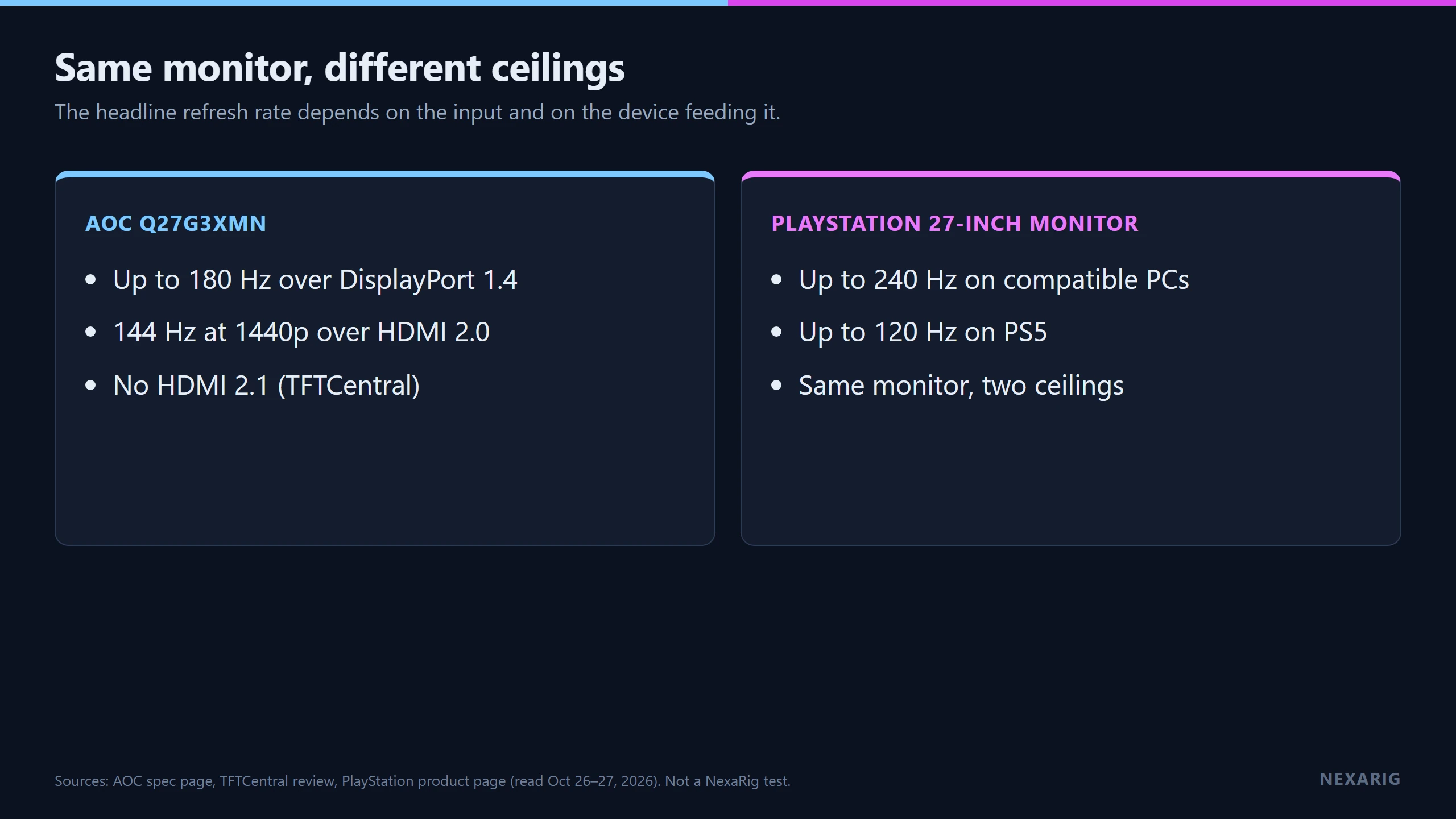 Drawn by NexaRig from AOC, TFTCentral and PlayStation pages (read Oct 26–27, 2026).
Text version of the diagram: AOC lists the Q27G3XMN at up to 180 Hz and 144 Hz at 1440p over HDMI 2.0; TFTCentral lists one DisplayPort 1.4 and two HDMI 2.0 ports, no HDMI 2.1, with 180 Hz over DisplayPort and 144 Hz over HDMI. PlayStation's monitor: up to 240 Hz on PC, up to 120 Hz on PS5.
PlayStation's own 27-inch monitor shows the same idea: same monitor, different ceilings per device. The official product page now links to purchase, while stock can still vary by moment and region.
How to choose a gaming monitor for your setup
| You are | Start from | Why | Trade-off |
|---|---|---|---|
| PC, modest graphics card | 24-inch 1080p, 144 Hz or more with VRR | Matches what the card can feed | Lower sharpness at 27 inches |
| PC, mid-range or better | 27-inch 1440p, high refresh, VRR | Common balance of sharpness and load | Needs a card that holds frames at 1440p |
| Console only (PS5) | 1440p or 4K with HDMI 2.1 and VRR | Sony asks for HDMI 2.1 for VRR at 1440p; RTINGS reports VRR on at least one HDMI 2.0 model, so check the exact model | Refresh above 120 Hz is wasted on the console |
| PC and console on one screen | HDMI 2.1 inputs plus DisplayPort | One screen, both machines at their best ports | More ports can mean a higher price |
Two examples, chosen because we read their manufacturer pages and an independent review of each, at opposite ends of the console/PC question. This is not a ranking.
| Model | Maker says | Test labs say |
|---|---|---|
| For a console (and a PC): Dell S2725QS | Dell: 27-inch 4K IPS, two HDMI 2.1 ports, 120 Hz, FreeSync Premium | RTINGS: 4K at 120 Hz with VRR on a PS5 Pro, but an office monitor with blur on fast objects |
| For a PC first: AOC Q27G3XMN | AOC: 27-inch 1440p VA Mini-LED, up to 180 Hz | RTINGS: "impressive" for PC gaming, good local dimming, some VRR flicker, no VRR with a PS5. TFTCentral and RTINGS: HDMI 2.0 only |
Who should skip a new monitor
- If your frame rate is the problem, a graphics card or settings change helps more than a new panel.
- If you mostly play on a TV, an HDMI 2.1 TV may already do the job.
- If the only reason is a spec number, a 360 Hz label does nothing at a fraction of that frame rate.
What to ignore
- Curvature: a preference, not a spec that changes what your machine outputs.
- Ultrawide on a PS5: RTINGS says the console does not handle ultrawide.
- An HDR label with no certification named: read the exact model's page.
Checklist before you buy
- I know the resolution and frame rate my machine holds in my main games.
- The resolution fits that, and the refresh rate is one my machine can approach.
- VRR is supported by the monitor and, for console, by my games.
- The size fits my desk depth and the 20 to 40 inch distance.
- The top refresh rate works on the input my machine uses.
- For OLED, I have read that exact model's warranty.
How we researched this
This is an analysis of manufacturer pages, not a hands-on test: NexaRig has not tested the monitors named here. On October 26, 2026 we read the Sony, PlayStation, AOC, Nintendo and Xbox pages listed below. On October 27, 2026 we read the Dell S2725QS page, the Amazon listing titles of the two linked models (to confirm the model, not its specs), a TFTCentral review and four RTINGS pages; members-only RTINGS results were not read. Pixel counts, frame times and pixel density are our own math.
FAQ
What is the most important spec when choosing a gaming monitor?
Resolution matched to your machine. Pick what your machine can feed at the frame rate you want.
Is 1440p worth it over 1080p?
It can be, if your machine holds your target frame rate at 1440p.
Is a higher refresh rate always worth paying for?
Only if your games reach frame rates close to it; on a PS5, PlayStation's monitor page lists up to 120 Hz.
Does the monitor's HDMI version matter for PS5?
Sony's PlayStation Blog post of February 2, 2023 says VRR at 1440p needs an HDMI 2.1 display that supports VRR; RTINGS reports exceptions, so check the exact model.
Limitations and points to verify
- Listings, specifications and firmware change; use the manufacturer's page for the exact model. We list no prices or stock.
- Microsoft's support pages on TV resolutions could not be read, so Xbox figures come from its product pages only.
- RTINGS pages may be updated after October 27, 2026.
Sources
Items 1 to 6 and 8 to 10 accessed October 26, 2026; items 7 and 11 to 16 accessed October 27, 2026.
- Sony Interactive Entertainment, "How to change PS5 console resolution": https://www.playstation.com/en-us/support/hardware/ps5-4k-resolution-guide/
- PlayStation, 27" Gaming Monitor with DualSense Charging Hook (product page): https://www.playstation.com/en-us/accessories/27-inch-gaming-monitor/
- PlayStation Blog, "First look at PlayStation's 27" Gaming Monitor," November 11, 2025: https://blog.playstation.com/2025/11/11/first-look-at-playstations-27-gaming-monitor/
- PlayStation Blog, "UPDATE: FlexStrike wireless fight stick, 27" Gaming Monitor, and Pulse Elevate wireless speakers," June 1, 2026: https://blog.playstation.com/2026/06/01/flexstrike-wireless-fight-stick-27-gaming-monitor-launching-in-august-followed-by-pulse-elevate-wireless-speakers-later-this-year/
- PlayStation Blog, "PS5 system software update rolls out globally today," February 2, 2023 (updated March 8, 2023): https://blog.playstation.com/2023/02/02/ps5-beta-introduces-discord-voice-chat-vrr-support-for-1440p-and-more/
- AOC, Q27G3XMN product page: https://www.aoc.com/us/gaming/monitors/q27g3xmn
- Dell, S2725QS product page: https://www.dell.com/en-us/shop/monitors/apd/dell-27-plus-4k-monitor-s2725qs/s2725qs_monitor/-
- Nintendo, Switch 2 tech specs: https://www.nintendo.com/us/gaming-systems/switch-2/tech-specs/
- Microsoft, Xbox Series X and Series S pages: https://www.xbox.com/en-US/consoles/xbox-series-x and https://www.xbox.com/en-US/consoles/xbox-series-s
- OSHA, "Computer Workstations eTool: Monitors": https://www.osha.gov/etools/computer-workstations/components/monitors
- Amazon US listings, used only to confirm models: https://www.amazon.com/dp/B0F1GF1KFC and https://www.amazon.com/dp/B0C8ZJKPWC
- RTINGS, AOC Q27G3XMN review (test bench updated October 7, 2026): https://www.rtings.com/monitor/reviews/aoc/q27g3xmn
- RTINGS, "A Monitor's Refresh Rate: How Much Does It Matter?" (updated September 15, 2026): https://www.rtings.com/monitor/learn/monitor-refresh-rate-does-it-matter
- RTINGS, "Longevity Burn-In Test: Updates And Results From 100 TVs" (updated October 6, 2026): https://www.rtings.com/tv/tests/longevity-burn-in-test-updates-and-results
- RTINGS, "The 6 Best Monitors For PS5/PS5 Pro of 2026" (updated October 14, 2026): https://www.rtings.com/monitor/reviews/best/ps5
- TFTCentral, AOC Q27G3XMN review (originally published Dec 7, 2023, updated Sep 24, 2024): https://tftcentral.co.uk/reviews/aoc-q27g3xmn
This article is based on sourced research, without direct testing by NexaRig. How NexaRig labels its articles.
NEXT // CONTINUE YOUR RUN