Monitor for PS5 and Laptop: Choose the Wiring First, Then the Screen
Pick how the PS5 and the laptop will connect, then the screen. Three wiring plans, the specs to check on each monitor, and the catches to know before you buy.
QUEST LOG 15 STEPS
- Quick answer
- At a glance
- Our take by profile
- The ideal connection layout
- Ports and functions checklist
- HDMI for the PS5
- USB-C and Power Delivery for the laptop
- KVM and USB switching explained
- Spec-checked product candidates
- Compromises to expect
- Setup walkthrough
- How we researched this
- Limitations and verification checklist
- FAQ
- Sources
MISSION BRIEFINGPick how the PS5 and the laptop will connect, then the screen. Three wiring plans, the specs to check on each monitor, and the catches to know before you buy.
One desk, one screen, a PS5 and a laptop. Most guides start with the monitor. Start with the cable instead: it decides which screens can work for you.
Quick answer
Yes, one monitor can serve both, as long as each device gets its own cable. The PS5 goes to an HDMI input, ideally HDMI 2.1, which Sony's resolution guide points to for 4K at 120 Hz. The laptop goes to a USB-C port that carries video and enough charging power, or to HDMI or DisplayPort if it is a gaming laptop with its own charger. For PS5-only picks, see our guide to the best monitor for PS5.
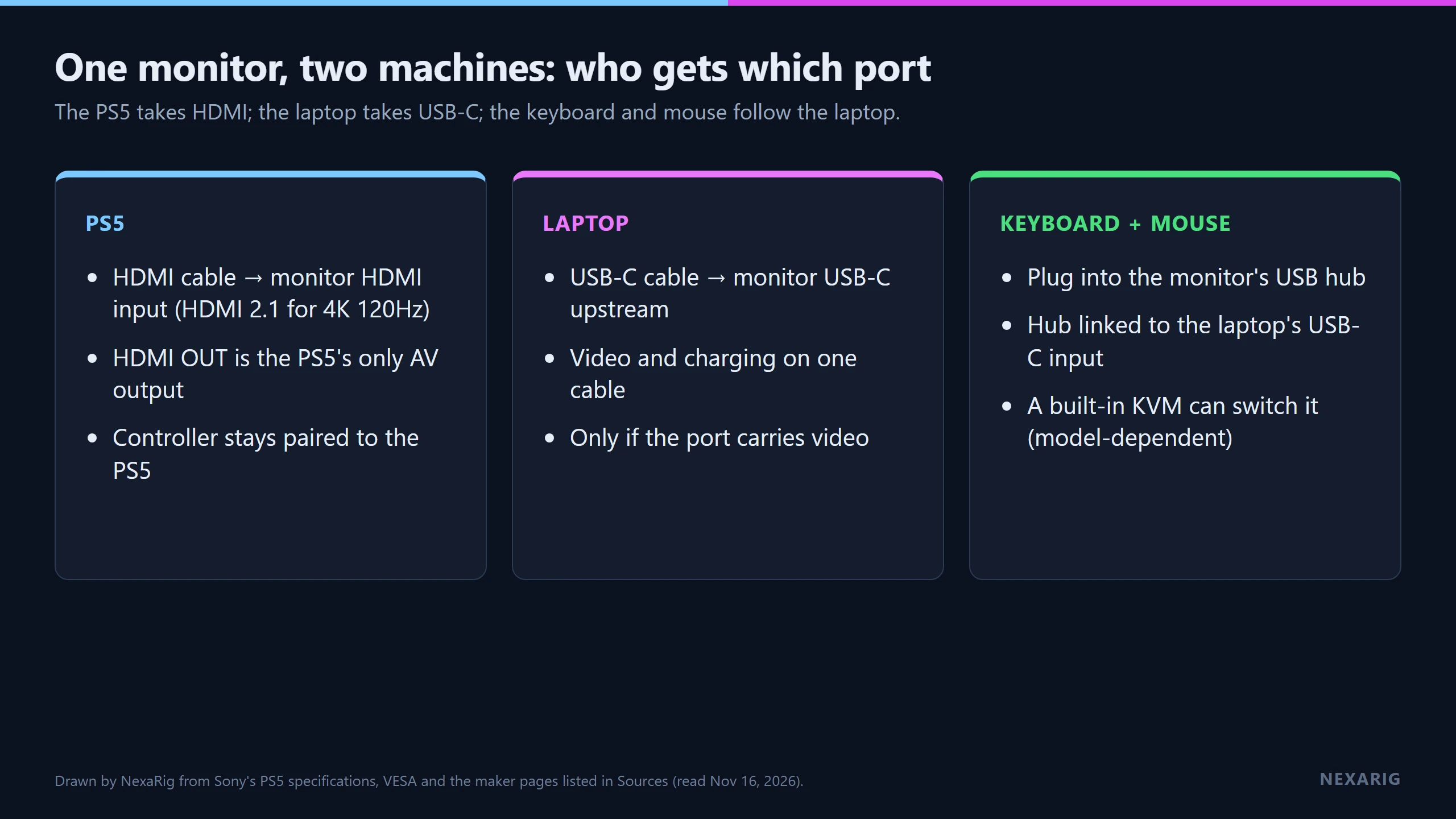
Drawn by NexaRig from Sony's PS5 specifications, VESA's DisplayPort over USB-C page and the maker pages listed in Sources (read November 16, 2026).
At a glance
- PS5 side: HDMI only. Sony's specification tables for the PS5, PS5 Slim and PS5 Pro list HDMI OUT as the only AV output.
- Laptop side: USB-C only works for video if the port supports DisplayPort Alt Mode or Thunderbolt.
- Charging: compare your charger's watts with the USB-C watts listed: 65 W (MSI MAG 274UPF, Dell S2725QC), 90 W (Dell U2724DE), 18 W per Gigabyte, 15 W per RTINGS (Gigabyte M27U).
- KVM: the MSI MAG 274UPF, Gigabyte M27U and Dell U2724DE list a KVM on their pages; the Dell S2725QC page lists none.
Our take by profile
Editorial recommendation and opinion, built from the specs below. NexaRig tested none of these monitors.
| Your profile | Our take | Why | Catch |
|---|---|---|---|
| Office laptop on USB-C, PS5 in 4K | MSI MAG 274UPF | 65 W USB-C, KVM and a 4K 120 Hz console note on MSI's US page | Not the E2 variant, which RTINGS reports at 15 W |
| Laptop with a small charger, wants a KVM | Gigabyte M27U | KVM and a 4K 120 Hz console note | 18 W per Gigabyte, 15 W per RTINGS: keep your own charger |
| Power-hungry laptop | Dell U2724DE: laptop-first, PS5 unverified | Thunderbolt 4 with up to 90 W, KVM | HDMI runs in TMDS with HDCP 1.4 per Dell; we found no PS5 report |
| 4K, 65 W, no KVM needed | Dell S2725QC | 4K 120 Hz HDMI 2.1 and 65 W USB-C | No KVM listed, no PS5 statement |
| Gaming laptop | Any model with two free video inputs | PS5 on one, laptop on the other, plus its own charger | Keep the laptop's own charger; the monitor must leave two video inputs free |
The ideal connection layout
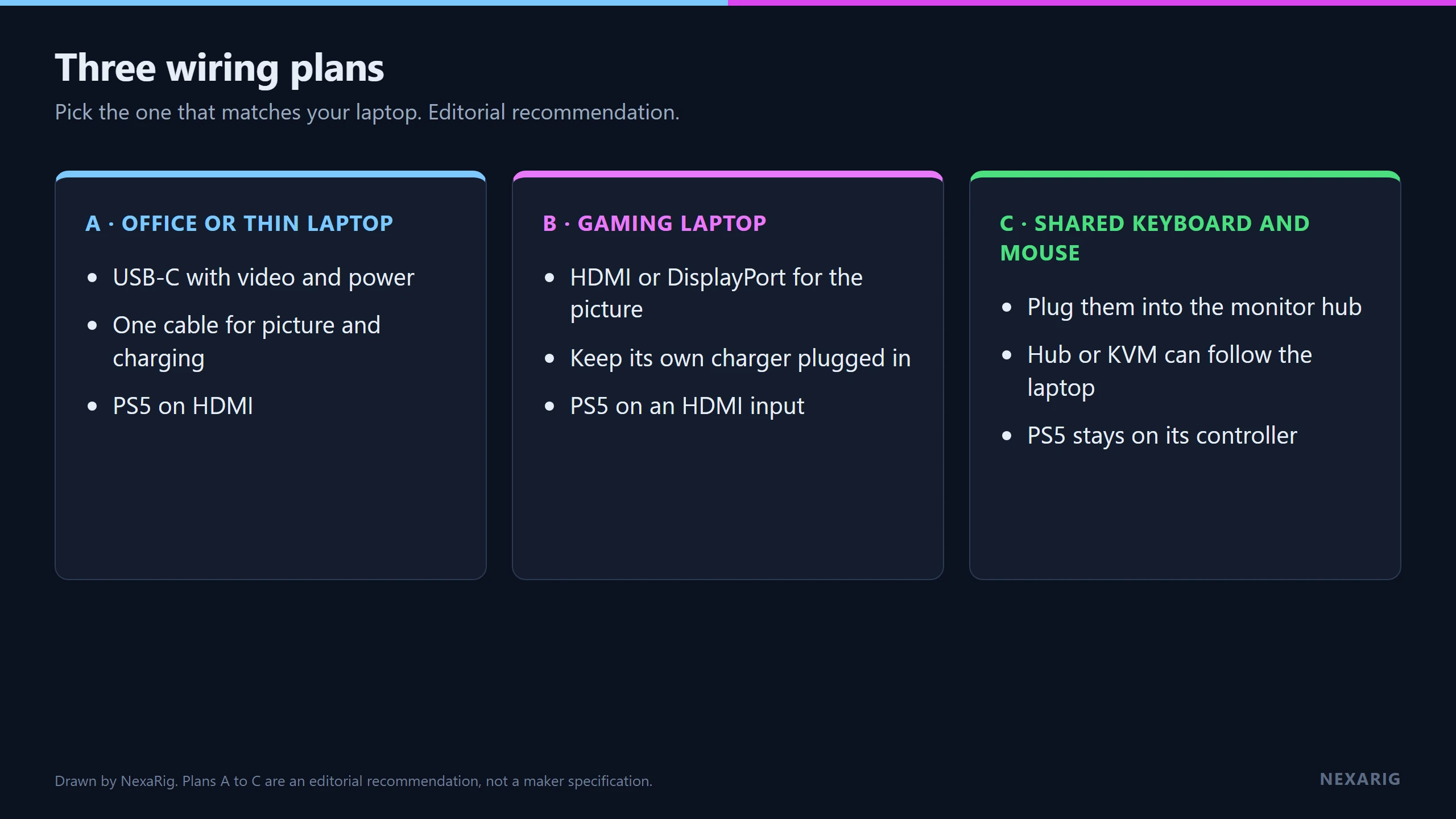
Drawn by NexaRig. Plans A to C are an editorial recommendation, not a maker specification.
- Plan A, one-cable laptop. USB-C carries picture, data and charging.
- Plan B, gaming laptop. Picture over HDMI or DisplayPort, so you need two free video inputs (the PS5 on an HDMI input), and keep the laptop's own charger. A monitor's USB-C power rarely replaces it.
- Plan C, shared peripherals. Keyboard and mouse on the monitor's USB hub or KVM, which can follow the laptop.
Ports and functions checklist
| Function | What to look for on the maker page | Why it matters |
|---|---|---|
| PS5 video | HDMI 2.1 input, with the HDMI 2.1 features listed | HDMI Licensing (HDMI.org) says each HDMI 2.1 feature is optional |
| Laptop video | USB-C with "DP Alt Mode" or Thunderbolt, or an HDMI or DisplayPort | See the USB-C section (BenQ) |
| Laptop charging | USB-C Power Delivery in watts | Below your charger's watts, it may not keep up |
| Keyboard and mouse | USB hub, or "KVM" written by the maker | Lets one set serve both machines |
HDMI for the PS5
The PS5 has no video output besides HDMI, as far as Sony's papers show. Its safety-guide specification tables list HDMI OUT as the only AV output on the PS5 (CFI-1016A), the PS5 Slim (CFI-2015) and the PS5 Pro (CFI-71XX). Its USB guide mentions no video output. We found no Sony sentence saying "no USB-C video" outright.
"HDMI 2.1" on a box does not guarantee 4K at 120 Hz. HDMI.org states that every HDMI 2.1 feature is optional, and TFTCentral showed that an "HDMI 2.1" input running in TMDS mode only offers HDMI 2.0-class bandwidth (18 Gbps).
| PS5 target | What the monitor's HDMI input needs |
|---|---|
| 1440p at 120 Hz | 120 Hz at 1440p listed over HDMI. NexaRig calculation: about 14.9 Gbps (approximate: 8-bit RGB, reduced-blanking timing), under HDMI 2.0's 18 Gbps |
| 4K at 120 Hz | An HDMI 2.1 port (Sony), with 4K 120 Hz over HDMI listed by the maker |
RTINGS reports the same split between 1440p and 4K at 120 Hz. Sony recommends the included HDMI cable, and an Ultra High Speed cable rated for 4K 120 Hz when troubleshooting 4K 120 Hz. For 1440p versus 4K, see 1440p vs 1080p for PS5.
USB-C and Power Delivery for the laptop
Not every USB-C port carries video. VESA describes DisplayPort Alt Mode as video, USB and power on one connector, but BenQ warns that not all USB-C ports support DP Alt Mode, and Intel notes that USB-C alone carries "no guarantee of display quality". Thunderbolt 4 certification, per Intel, requires video, data and power.
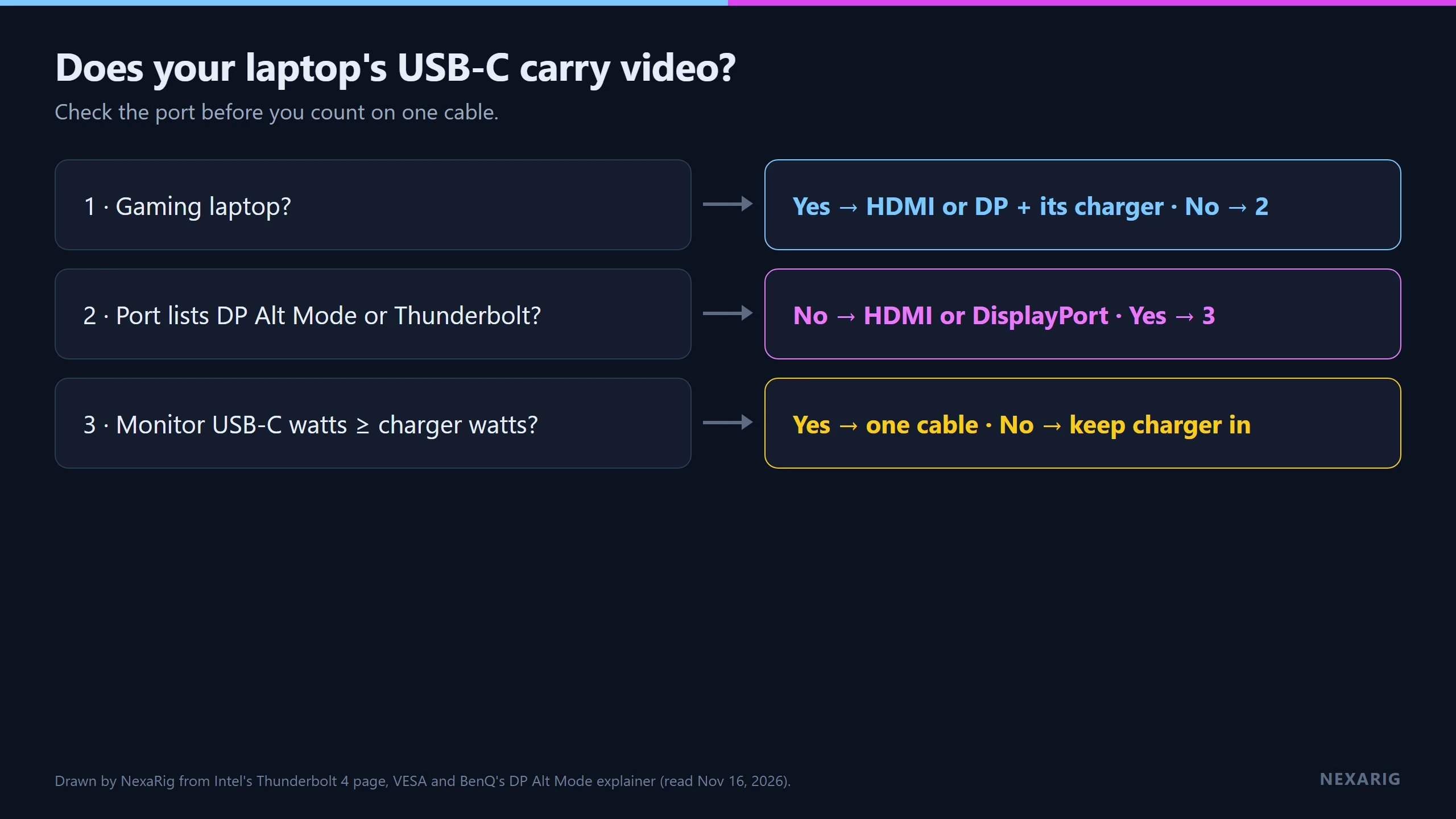
Drawn by NexaRig from Intel's Thunderbolt 4 page, VESA's DisplayPort over USB-C page and BenQ's DP Alt Mode explainer.
Text version of the diagram: 1. Gaming laptop? Yes: HDMI or DisplayPort plus its own charger. 2. USB-C port lists DisplayPort Alt Mode or Thunderbolt? No: HDMI or DisplayPort. 3. Monitor watts at or above your charger's? Yes: one cable. No: keep your charger plugged in.
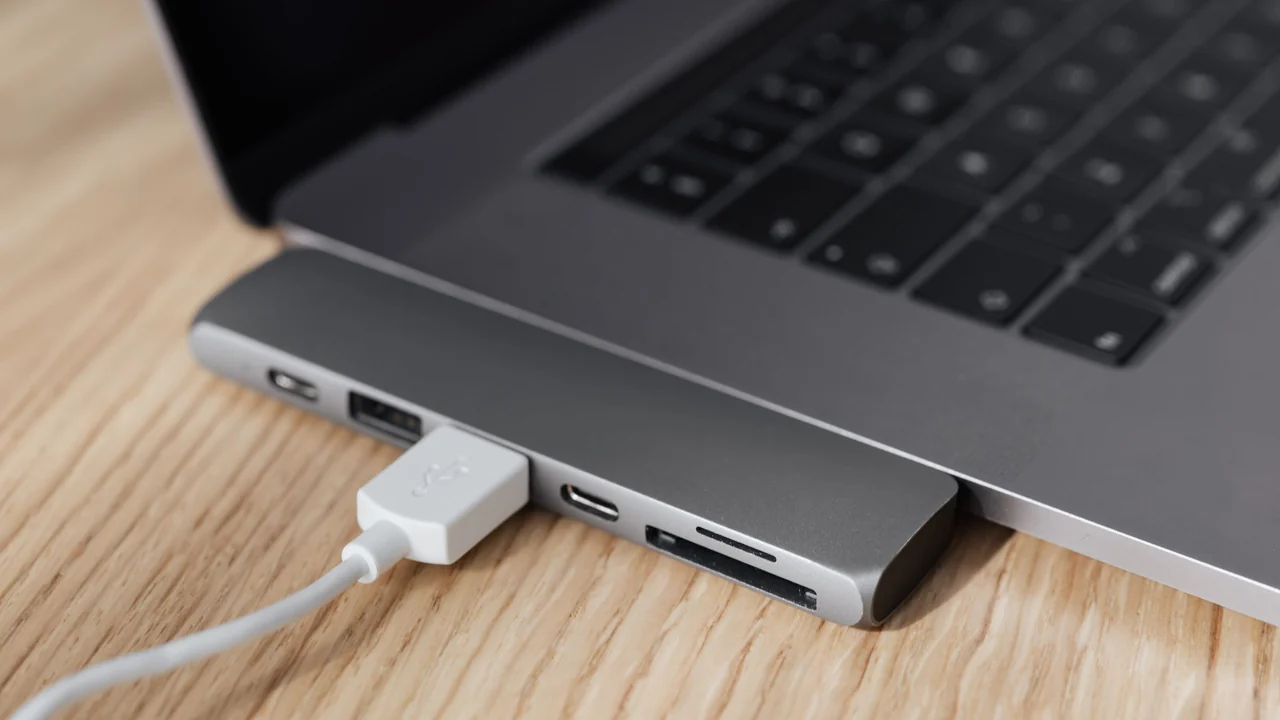
A USB-C hub on a laptop. Whether a port or hub carries video depends on its spec (DisplayPort Alt Mode or Thunderbolt), not on its look. Photo: Karola G / Pexels (cropped by NexaRig)
USB.org says USB PD 3.1 goes up to 240 W, but monitors list far lower values.
KVM and USB switching explained
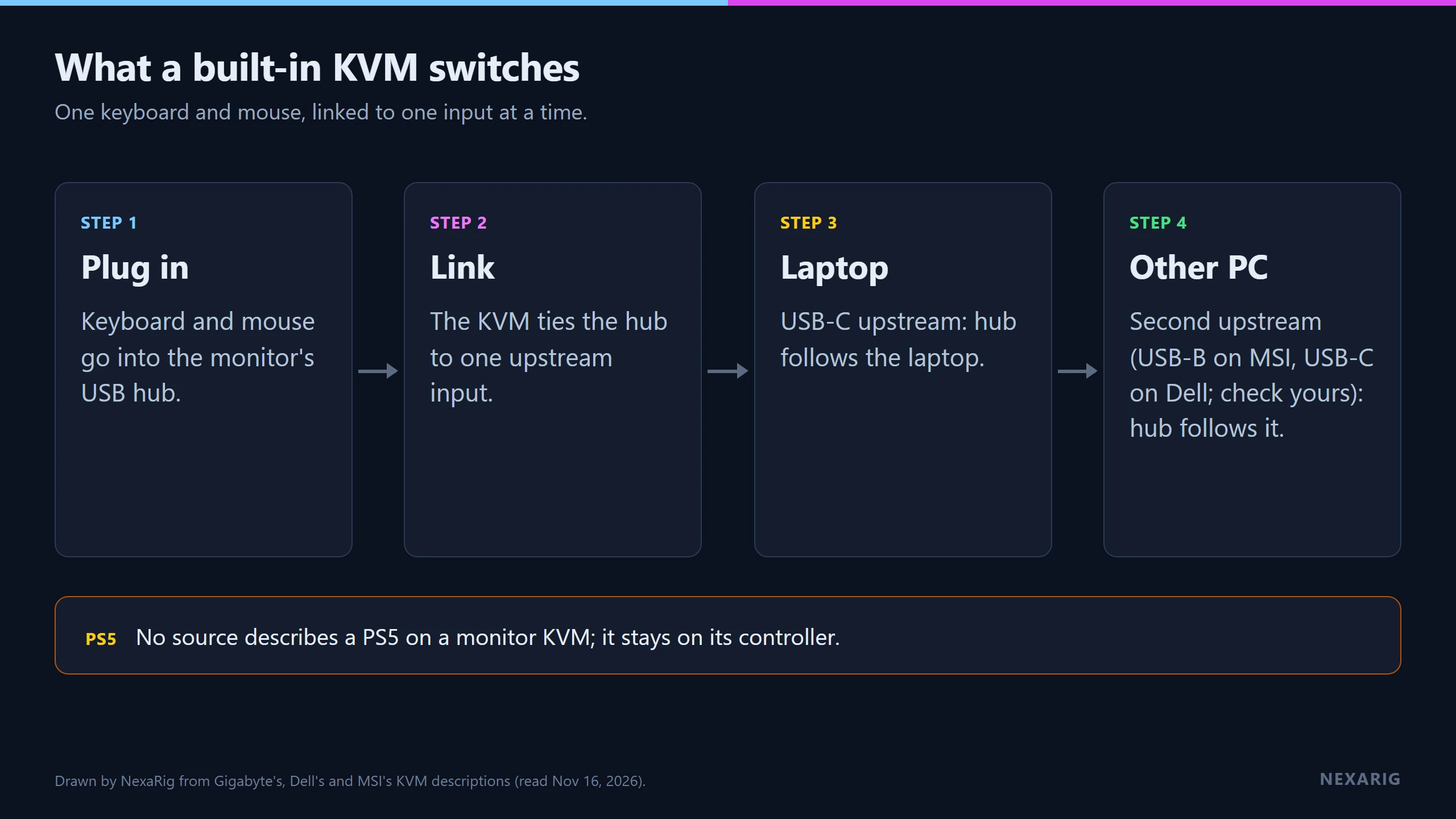
Drawn by NexaRig from Gigabyte's, Dell's and MSI's KVM descriptions.
MSI describes its KVM as controlling multiple devices with one set of keyboard and mouse, Gigabyte lists a KVM among its functions, and Dell says its Auto KVM lets one keyboard and mouse control both PCs. None of these sources describes the PS5.
Use the KVM for the laptop and a second computer, and drive the PS5 with its controller. Sony says the PS5 accepts USB or Bluetooth keyboards and mice, but "Not all devices work with your console."
For daily switching, use the monitor's input button or menu. How the KVM follows the input is model-specific, so read your model's manual.
Spec-checked product candidates
Only monitors whose official US page we read are listed; none was tested by NexaRig.
MSI MAG 274UPF
MSI's US page lists a 3840x2160 panel at 144 Hz, two HDMI inputs "as specified in HDMI 2.1", DP Alt Mode with 65 W PD charging and a KVM. The page also notes 4K UHD 120 Hz (4:2:0) for PS5. It is the only one of the four that pairs 4K 120 Hz over HDMI 2.1 with 65 W of USB-C charging and a KVM on an official page. RTINGS reports the E2 variant has only 15 W on USB-C, so check the suffix.
Gigabyte M27U
Gigabyte's US page lists 4K at 160 Hz, two HDMI 2.1, a KVM, and the same 4K 120 Hz (4:2:0) console note. The USB-C row reads "Power Delivery up to 18W", while RTINGS says it is limited to 15 W.
Dell S2725QC
Dell's US page lists 4K at 120 Hz, HDMI 2.1 with FRL and VRR, and USB-C with DisplayPort 1.4 Alt Mode and up to 65 W. It does not list a KVM.
Dell U2724DE
Dell lists a 2560x1440 panel at 120 Hz, one HDMI input described as version 2.1 but "HDCP 1.4" and "TMDS", Thunderbolt 4 with up to 90 W PD, and a KVM switch. Unverified for PS5: Dell lists QHD 120 Hz for its HDMI input, and we found no PS5 report.
Not listed: the Gigabyte M28U and M32U show only "USB Type-C x1", with no DP Alt Mode or watts.
| Model (US page) | HDMI declared | USB-C | KVM | PS5 cited |
|---|---|---|---|---|
| MSI MAG 274UPF | 2x, 2.1 | DP Alt, 65 W | Yes | Yes, 4K 120 Hz 4:2:0 |
| Gigabyte M27U | 2x, 2.1 | Alt Mode, 18 W (RTINGS: 15 W) | Yes | Yes |
| Dell S2725QC | 2x, 2.1 FRL | DP 1.4 Alt, 65 W | Not listed | No |
| Dell U2724DE | 1x, 2.1 TMDS | Thunderbolt 4, 90 W | Yes | No |
Compromises to expect
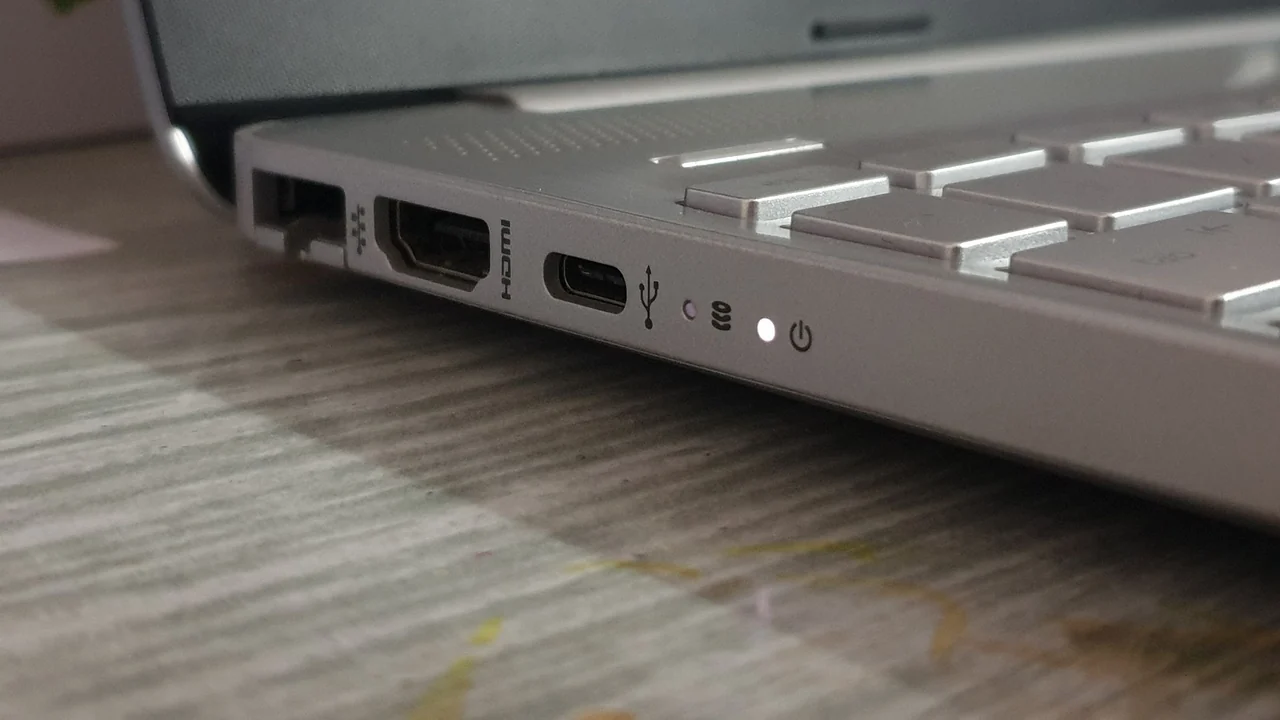
Check which of your laptop's ports carry video. Photo: SK P / Pexels (cropped by NexaRig)
- 4:2:0 on 4K 120 Hz. MSI and Gigabyte note it for consoles. That is chroma subsampling; in our explanation, color is stored at lower resolution than brightness, so fine colored detail can look softer.
- Small USB-C charging. The Gigabyte M27U lists 18 W (RTINGS: 15 W) and the ASUS ROG Strix XG27UCS "USB-C Power Delivery: 15W".
- One HDMI input. The Dell U2724DE has one HDMI input plus a DisplayPort 1.4 input, so put the PS5 on HDMI and the laptop on DisplayPort or USB-C.
- Panel type. Read our IPS vs OLED comparison before paying for a different panel.
Setup walkthrough
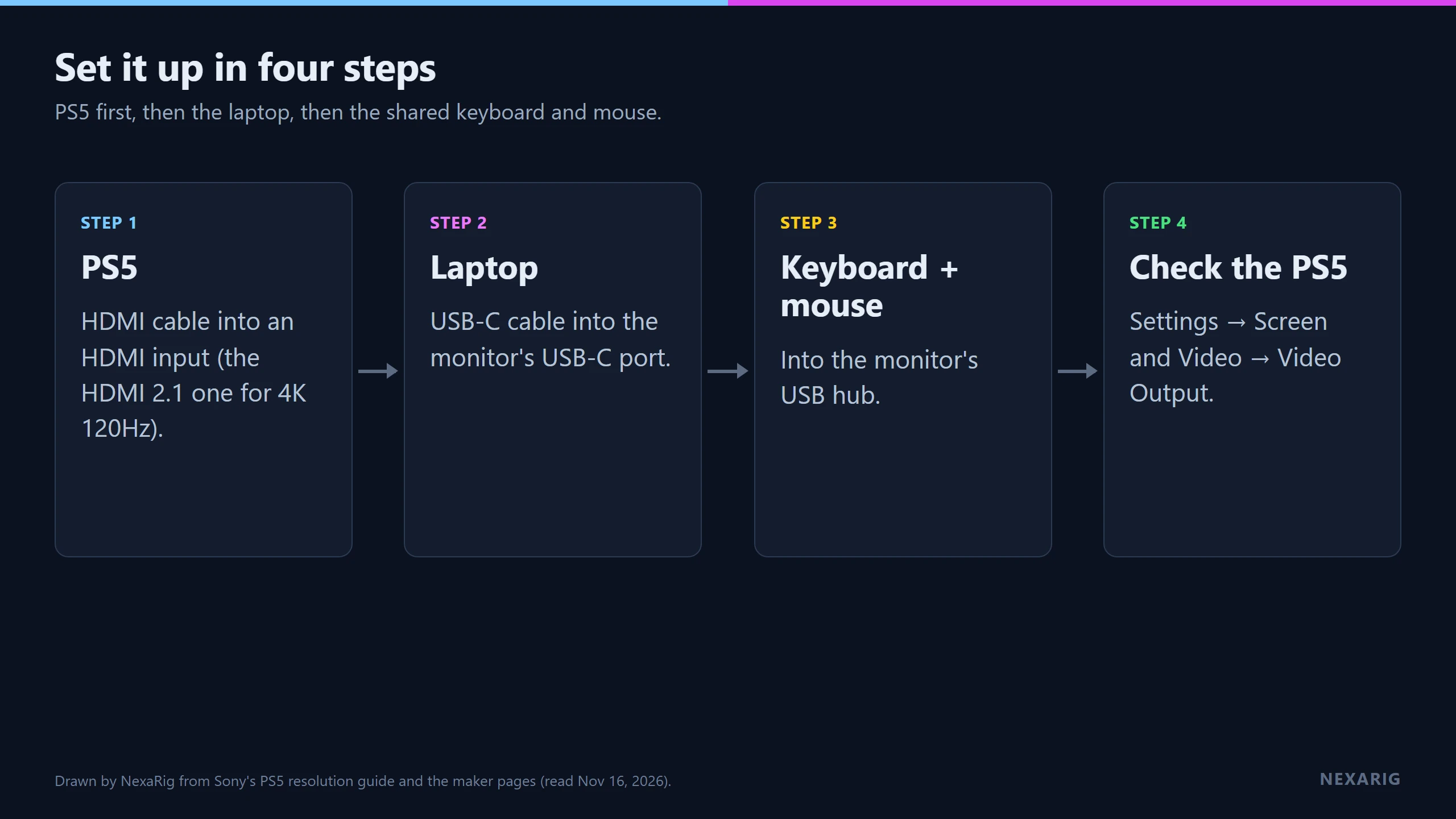
Drawn by NexaRig from Sony's PS5 resolution guide (read November 16, 2026).
Text version of the diagram: 1. PS5 to the monitor's HDMI input (HDMI 2.1 for 4K 120Hz). 2. Laptop to USB-C. 3. Keyboard and mouse to the hub. 4. PS5: Settings, Screen and Video, Video Output.
- Plug the PS5 into the monitor's HDMI input with the included cable, or a certified Ultra High Speed cable.
- Connect the laptop by USB-C, or HDMI or DisplayPort for a gaming laptop.
- Put the keyboard and mouse on the monitor hub and bind them to the laptop.
- On the PS5, open Settings, Screen and Video, Video Output. Check "Current Video Output Signal" and "Information for the Connected HDMI Device".
Audio: our advice, not a maker spec. Check where your headset plugs in (controller, monitor jack or USB) before you buy. For 120 Hz or VRR trouble, see our guide "PS5 Stuck at 60Hz? 120Hz and VRR Monitor Setup, Step by Step". For selection basics, see how to choose a gaming monitor.
How we researched this
NexaRig has no test hardware and measured nothing. On November 16, 2026 we read the Sony, VESA, HDMI.org, USB.org and Intel pages, the MSI, Gigabyte and Dell US product pages, the ASUS ROG Strix XG27UCS specification page, BenQ's DP Alt Mode explainer, and the public parts of the RTINGS and TFTCentral pages. RTINGS result tables are member-only, so we used only its free text. No price or stock was checked.
Limitations and verification checklist
Maker pages change by region and suffix. Check these before buying:
- MSI MAG 274UPF: exact code (not E2), HDMI 2.1 wording, 65 W USB-C and KVM on your regional page.
- Gigabyte M27U: USB-C watts (18 W maker vs 15 W RTINGS) and revision.
- Dell S2725QC: the US page lists no KVM; confirm on yours.
- Dell U2724DE: HDMI limited to TMDS and HDCP 1.4; no PS5 report found.
- All: your laptop's USB-C video support and charger watts, HDMI 2.1 features and your region's SKU.
FAQ
Can one monitor be used for a PS5 and a laptop?
Yes. Give the PS5 an HDMI input (HDMI 2.1 for 4K at 120 Hz) and the laptop USB-C with video, HDMI or DisplayPort.
Can the PS5 use USB-C for video?
No, according to Sony's specs: HDMI OUT is the only AV output, and we found no Sony statement about USB-C video.
Do I need a KVM?
Not for the PS5. A KVM mainly helps if you share one keyboard and mouse between a laptop and another computer.
Can both devices use the maximum refresh rate?
Usually, each on its own port, within that port's limit. Sony lists 120 Hz video output over HDMI for the PS5; the laptop depends on its port and cable. MSI's US page lists 144 Hz over HDMI 2.1 for the MAG 274UPF; check the USB-C refresh rate on your model's page.
Sources
- Sony Interactive Entertainment, PS5 Safety Guides CFI-10XXA (CFI-1016A), CFI-20XX (CFI-2015) and CFI-71XX, Specifications, undated PDFs, read November 16, 2026.
- PlayStation Support, "PS5 USB ports guide" and "4K resolution guide", undated, read November 16, 2026.
- PlayStation Support, "Keyboard and mouse on PS5", undated, read November 16, 2026.
- HDMI Forum / HDMI.org, "HDMI 2.1 features are optional", February 6, 2022, and cable pages, read November 16, 2026.
- TFTCentral, "When HDMI 2.1 isn't HDMI 2.1", December 13, 2021.
- VESA, "DisplayPort over USB-C", read November 16, 2026.
- Intel, "Thunderbolt 4 vs USB-C", read November 16, 2026.
- BenQ, "USB-C introduction: what is DP Alt Mode", June 30, 2025.
- USB-IF, "USB Charger / PD 3.1", read November 16, 2026.
- MSI US, MAG 274UPF specification and overview pages, read November 16, 2026.
- Gigabyte US, M27U, M28U and M32U specification pages, read November 16, 2026.
- Dell US, S2725QC and U2724DE product pages, read November 16, 2026.
- ASUS US, ROG Strix XG27UCS specification, read November 16, 2026.
- RTINGS, "Best monitors for PS5" (updated October 14, 2026) and the MSI MAG 274UPF, Gigabyte M27U and Dell S2725QC reviews, public text only.
This article is based on sourced research, without direct testing by NexaRig. How NexaRig labels its articles.
NEXT // CONTINUE YOUR RUN