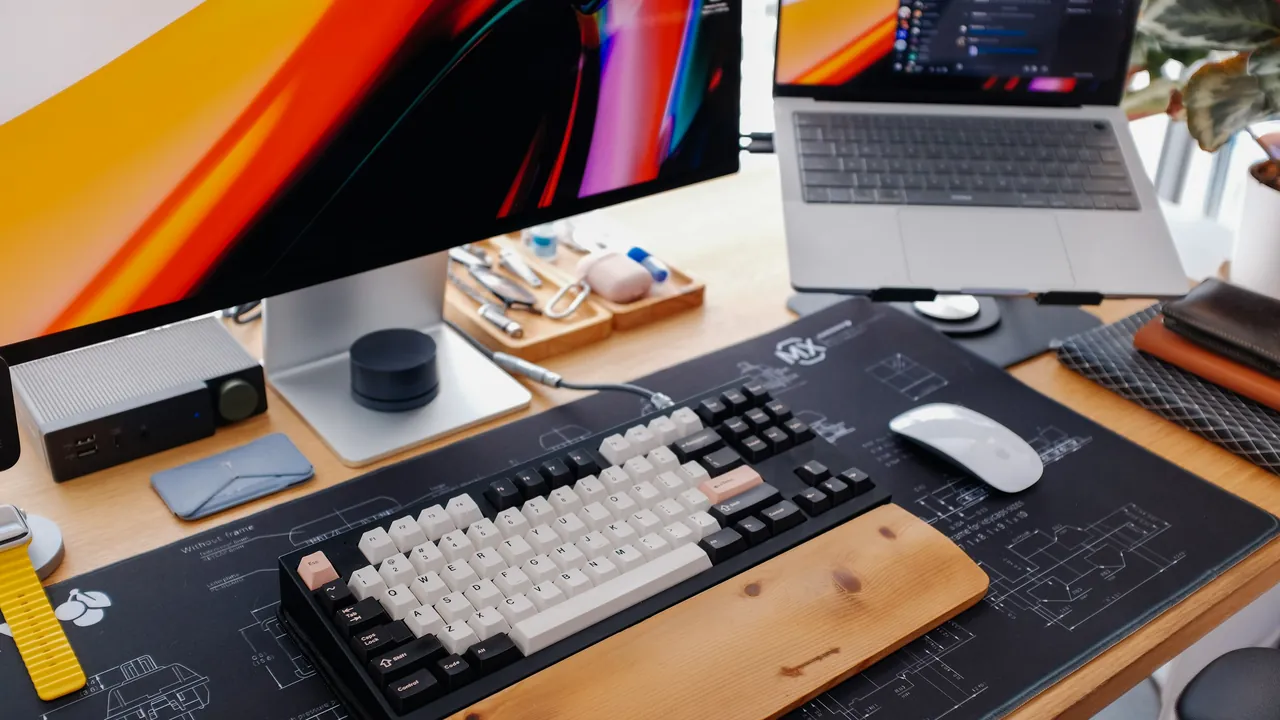
 Photo: Huy Phan / Unsplash
Budget Gaming Setup (2026): 3 Kits From $150 to $800 (PC Not Included)
Already have the PC or console? Here are three budget gaming setup kits at $150, $400 and $800, what to buy first, and how to set it all up so it doesn't hurt.
QUEST LOG 11 STEPS
- At a glance
- Budget gaming setup: the buying order that works
- Set it up right (before buying anything else)
- The three budget kits
- Gaming setup ideas for small rooms and dual monitors
- Console vs PC: picking the right monitor
- Lighting: bias light vs RGB ambience
- Your gaming setup checklist
- How we researched this
- FAQ
- Sources
MISSION BRIEFINGAlready have the PC or console? Here are three budget gaming setup kits at $150, $400 and $800, what to buy first, and how to set it all up so it doesn't hurt.
This article contains affiliate links.
Let's get one thing straight first: this guide assumes you already own the machine. Your gaming PC or console is sorted. What you're building here is a budget gaming setup around it: the screen you stare at, the chair you sit in, and the gear your hands and ears touch every session.
Our rule is simple: spend where you feel it first. Some upgrades change every minute you play. Others look great in photos and do very little. So instead of vague "tiers," we built three real kits at $150, $400 and $800, with no product repeated between them.
At a glance
- Three kits, PC not included: $149.97 for inputs and audio, $389.96 adding a 240 Hz monitor, $779.95 adding a 1440p monitor and a gaming chair. All totals use list prices from the brands' own sites, checked Sept 25, 2026.
- Our take on buying order: monitor first, then chair, then mouse and keyboard, then headset. Desk, arm and lighting come last.
- Set it up right for free: screen 20–40 inches away, top of the screen at or slightly below eye level, elbows at 90–120°, feet flat.
- Console players: PS5 output tops out at 120 Hz, and HDMI 2.1 matters. Keyboards and mice in these kits are mainly PC gear.
- Lighting: a 6500K bias light and colorful RGB ambience do different jobs. Don't confuse them.
Budget gaming setup: the buying order that works
Every product competes for the same budget. So we rank them by how directly they affect each session. This order is our editorial opinion, not a rule from any standards body.
1. Monitor
Our take: buy the monitor first. It's in front of you for your entire playtime, and it decides how sharp and smooth the game looks. A good PC or console on a weak screen feels like wasted money.
2. Chair
A bad chair doesn't hurt in minute one. It hurts in hour three. OSHA's workstation guidance lists what to look for: lumbar support adjustable in height, adjustable seat depth, armrests, and a backrest that reclines at least 15°, with your feet flat on the floor. Use that list to judge any chair, including the one you already own.
3. Mouse and keyboard
Your direct inputs. They're cheap to upgrade later without touching anything else, which is why our $150 kit starts here for people who already have a screen.
4. Headset
Good audio helps you hear footsteps and your squad. A wired headset is the cheapest way to cover game sound and voice chat.
5. Desk, arm, lighting and cables
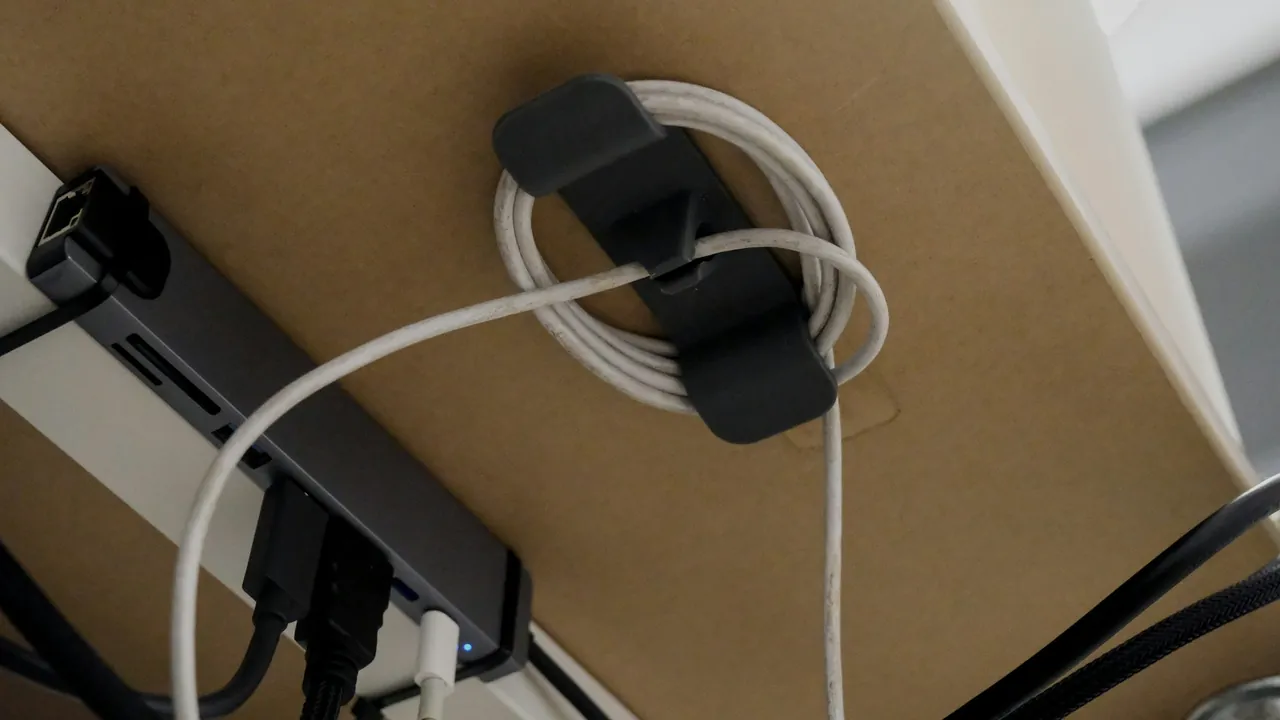
These make a setup cleaner and more comfortable, but they come after the gear you use every second. When everything is in place, tidy up with our under-desk cable management guide.
Set it up right (before buying anything else)
Good positioning costs nothing. These rules come from OSHA's computer workstation guidance and Cornell University's ergonomics guide (CUergo). They were written for office work, but the body in a gaming chair is the same body.
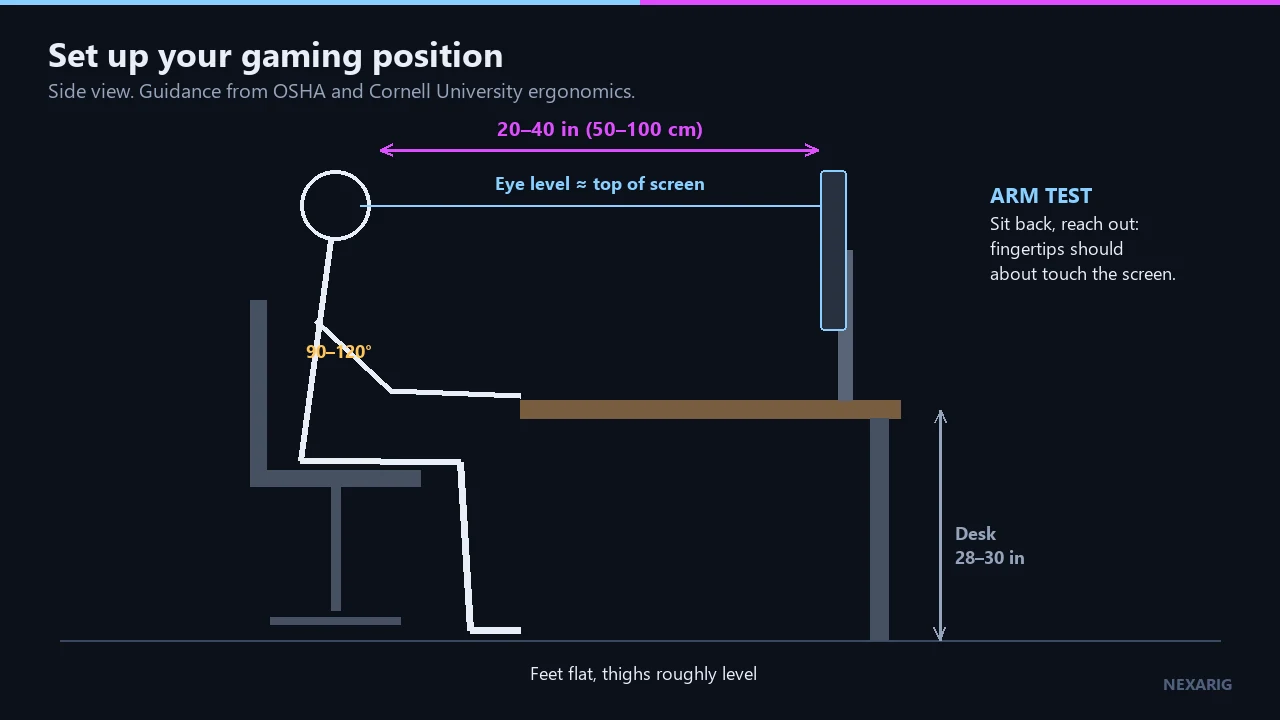
Monitor position
- Distance: OSHA recommends 20 to 40 inches between your eyes and the screen.
- The arm test: Cornell's quick check is to sit back and extend your arm. Your fingertips should roughly reach the screen.
- Height: top of the screen at or slightly below eye level. OSHA places the center of the screen about 15 to 20° below horizontal eye level.
- Glare: avoid reflections from windows or lamps.
Body position
- Elbows: close to your body, bent between 90 and 120° (OSHA).
- Thighs: roughly parallel to the floor.
- Feet: flat on the floor, or on a footrest.
Desk size
- Height: Cornell puts a work surface at about 28 to 30 inches for most adults.
- Depth: about 30 inches is a common standard for 27- to 32-inch monitors. That guidance comes from a furniture manufacturer (Eureka Ergonomic), so treat it as a practical rule of thumb. A monitor arm can make up for a shallower desk.
The three budget kits
All prices are list prices from each brand's own site at time of writing (Sept 25, 2026). Retail prices change, so check before you buy. None of these products was tested by NexaRig; the opinions we mention are attributed to the outlets that reviewed them.
The $150 kit: inputs and audio ($149.97)
| Item | Pick | Why | List price |
|---|---|---|---|
| Mouse | Logitech G203 LIGHTSYNC (wired) | Cheap, simple wired mouse; Tom's Hardware calls it basic but capable | $39.99 |
| Keyboard | Logitech G213 Prodigy | Full-size RGB keyboard; RTINGS calls it a decent entry-level option | $59.99 |
| Headset | HyperX Cloud Stinger 2 (wired, 50 mm drivers) | 4-pole 3.5 mm jack, so it plugs into a controller on PS5, Xbox and Switch | $49.99 |
| Total | $149.97 |
Who it's for: you already have a monitor or TV and a chair, and you want to replace worn-out or bundled peripherals. Be aware that the G213 uses membrane "Mech-Dome" keys: it is not a mechanical keyboard. The mouse and keyboard are mainly PC gear; console players get the most out of the Stinger 2 plugged into the controller.
The $400 kit: add a fast monitor ($389.96)
| Item | Pick | Why | List price |
|---|---|---|---|
| Monitor | Dell SE2426HGS (24", 1080p, 240 Hz, HDMI 2.1) | RTINGS lists it among its budget picks under $200; HDMI 2.1 suits consoles | $139.99 |
| Mouse | Logitech G305 Lightspeed wireless gaming mouse | Wireless; RTINGS names it its best budget mouse | $59.99 |
| Keyboard | Logitech G413 SE | Mechanical switches and PBT keycaps; Tom's Hardware found it too basic for the money | $89.99 |
| Headset | HyperX Cloud III wired gaming headset | Featured in Tom's Hardware's best gaming headsets | $99.99 |
| Total | $389.96 |
Who it's for: you're starting from scratch with a PC or console and you'll keep your current chair for now. This is the kit that follows our "monitor first" logic. The G413 SE gets you real mechanical switches, though reviews are mixed. The Dell's HDMI 2.1 port makes it a sensible screen if you play on both PC and console.
The $800 kit: 1440p and a real chair ($779.95)
| Item | Pick | Why | List price |
|---|---|---|---|
| Monitor | Dell G2725D (27", 1440p, 180 Hz, 2 × HDMI 2.1) | Two HDMI 2.1 ports and 1440p at 144 Hz over HDMI; our take: a solid console screen | $199.99 |
| Chair | Corsair TC100 RELAXED (fabric) | PC Gamer calls it the best budget gaming chair | $269.99 |
| Keyboard | Corsair K70 CORE RGB mechanical keyboard | Full-size mechanical; on RTINGS' list of keyboards under $100 | $99.99 |
| Mouse | Logitech G309 Lightspeed | Wireless plus Bluetooth; Tom's Hardware's review is mixed | $89.99 |
| Headset | Logitech G535 Lightspeed | Wireless; RTINGS calls it a worthy choice | $119.99 |
| Total | $779.95 |
Who it's for: you want a sharper 27-inch screen and a chair that actually replaces the kitchen chair. Let's be honest about the monitor: RTINGS is unfavorable on the G2725D for PC gaming, citing motion blur, no HDR and a tilt-only stand. Its strength is console play, thanks to two HDMI 2.1 ports. Also note the G535's USB receiver works with PC and PlayStation only.
PC-first alternative: swap the Dell for the AOC Q27G3XMN 27" 1440p Mini-LED monitor, which RTINGS recommends. There's no manufacturer list price, so we left it out of the kit total; check the current price before you buy. Its HDMI port is HDMI 2.0, so it's a PC monitor first, not a console pick.
Want more ideas for each piece? Browse all our gaming setup guides.
Gaming setup ideas for small rooms and dual monitors
Short on space, or planning to run two screens? The same rules apply, and a few choices make them easier to follow.
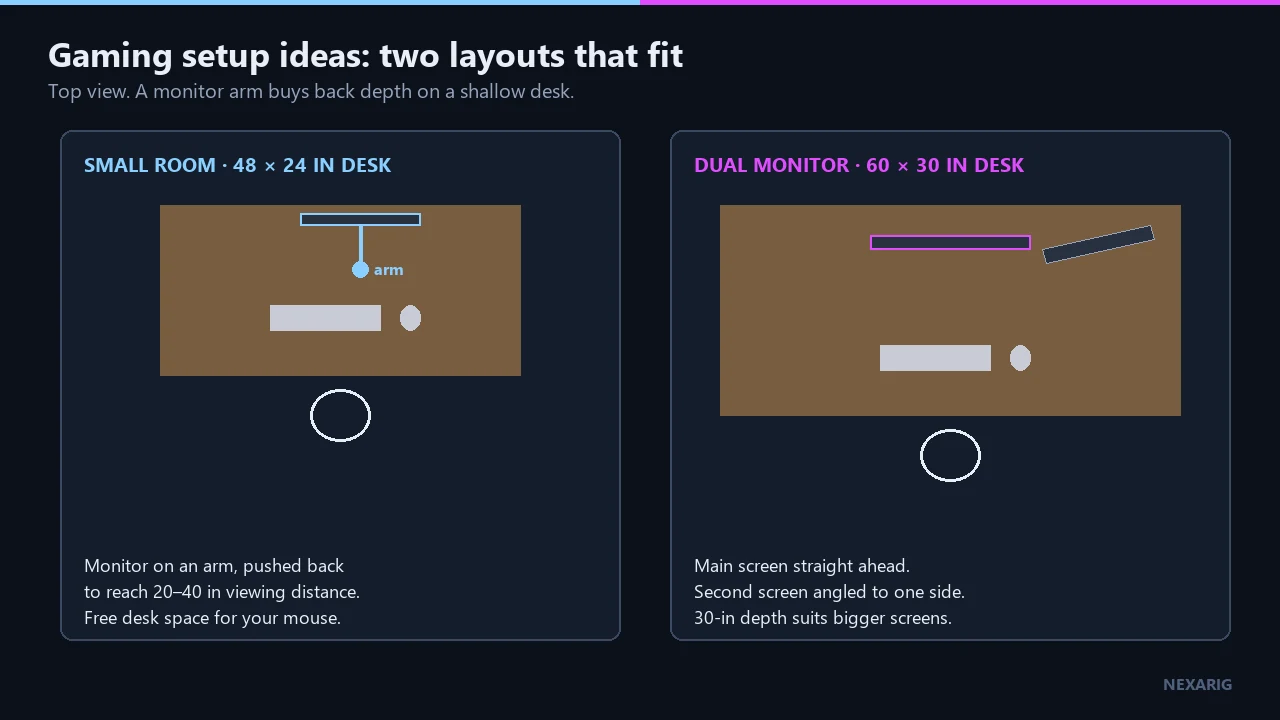
- Shallow desk? Use a monitor arm. About 30 inches of depth is a common rule of thumb for 27- to 32-inch monitors. If your room only fits something shallower, an arm like the Ergotron LX monitor arm lets you move the screen back to reach the 20–40 inch range.
- Main screen straight ahead. OSHA says to put the monitor directly in front of you. Our take for two screens: make the one you game on the one straight ahead, and set the second one off to the side.
- Mind the height. Keep the top of your main screen at or slightly below eye level.
- Measure first. Check your desk's depth and height (about 28 to 30 inches for most adults) before adding a second or bigger screen.
Console vs PC: picking the right monitor
- PS5 tops out at 120 Hz. Sony's support page says the PS5 outputs up to 120 Hz, supports 1440p at 60 Hz and 120 Hz with VRR, and needs the included cable or an Ultra High Speed HDMI cable for 4K at 120 Hz.
- Port type matters. For a console, favor HDMI 2.1, like the Dell SE2426HGS or Dell G2725D. The AOC Q27G3XMN's HDMI 2.0 makes it primarily a PC monitor.
- Sony's own option: PlayStation has announced a 27-inch 1440p monitor that runs at 120 Hz on PS5 and 240 Hz on PC, with VRR. No price was listed in the announcement.
- Nintendo Switch 2: Nintendo lists up to 4K in TV mode (60 fps at 4K), HDR, VRR and up to 120 fps depending on mode and display. Its information doesn't clearly settle behavior on a 1440p 120 Hz monitor, so check before buying a screen specifically for Switch 2.
Still deciding on the console? Read our PS5 vs PS5 Pro comparison.
Lighting: bias light vs RGB ambience
Bias lighting (for your eyes and image)
A bias light sits behind the screen, aimed at the wall. According to MediaLight, a bias lighting vendor, it should be 6500K (the D65 white point), CRI 90 or higher, no brighter than about 10% of your screen's maximum brightness, and aimed behind the display. That's the vendor's guidance, but it's clear and specific.
RGB ambience (for the vibe)
Colorful RGB backlights add atmosphere, but they are not the same as a calibrated 6500K bias light. Pick them for style, not image accuracy.
Task light (for your desk)
A monitor light like the BenQ ScreenBar is a third category: it sits on top of the monitor and lights your desk.
Your gaming setup checklist
- PC or console ready, with the right cable (Ultra High Speed HDMI for 4K 120 Hz on PS5)
- Monitor matched to your platform (HDMI 2.1 for console)
- Screen 20–40 inches away; fingertips reach it with your arm extended
- Top of the screen at or slightly below eye level, main screen directly in front of you
- No glare from windows or lamps
- Chair checked for adjustable lumbar, seat depth, armrests and recline
- Elbows at 90–120°, thighs roughly parallel to the floor, feet flat or on a footrest
- Desk around 28–30 inches high and about 30 inches deep (or a monitor arm to compensate)
- Mouse, keyboard and headset connected and tested on your platform
- Lighting set: bias light behind the screen and/or task light on the desk
- Cables routed and tidied
How we researched this
We didn't test any of these products at NexaRig. We collected list prices from each brand's own website on September 25, 2026, and built every kit total from those figures, not from temporary sales. Product opinions come from published reviews and buying guides by RTINGS, Tom's Hardware and PC Gamer, and we attribute each one. Ergonomic guidance comes from OSHA and Cornell University's CUergo guide. Where a price or detail couldn't be confirmed, we say so.
FAQ
What should I buy first for a gaming setup: monitor or chair?
Our take: the monitor, in most cases, because you look at it the entire time you play. The chair comes next. If your current chair is genuinely painful, swap the order.
Is a 1440p monitor worth it for PS5 if it only goes up to 120Hz?
It can be. Sony says the PS5 supports 1440p at 60 Hz and 120 Hz with VRR. Don't pay extra for refresh rates above 120 Hz for console-only use, and pick HDMI 2.1, like the Dell G2725D in our $800 kit.
How far should my monitor be from my eyes for gaming?
OSHA recommends 20 to 40 inches. Cornell's quick check: with your arm extended, your fingertips should roughly touch the screen.
How deep should a gaming desk be for a 27-inch monitor?
About 30 inches is a common rule of thumb for 27- to 32-inch screens. If your desk is shallower, a monitor arm can push the screen back.
Can I build a full gaming setup for under $500 (without the PC)?
Yes. Our $400 kit (a 240 Hz monitor, wireless mouse, mechanical keyboard and wired headset) totals $389.96 at list prices. It doesn't include a chair, so keep yours for now. If you already have a screen, the $150 kit covers mouse, keyboard and headset for $149.97.
Sources
- OSHA, "Computer Workstations eTool": Monitors, Neutral Working Postures and Chairs
- Cornell University Ergonomics Web (CUergo), "Ergonomic Guidelines for Arranging a Computer Workstation"
- Eureka Ergonomic, desk depth and monitor viewing distance (manufacturer guidance)
- Sony, "PS5 4K resolution guide" (PlayStation Support)
- PlayStation.Blog, first look at PlayStation's 27-inch gaming monitor (Nov 11, 2025)
- Nintendo of America, "Nintendo Switch 2 features"
- MediaLight, "Bias Lighting Fundamentals" (vendor guidance)
- RTINGS: best budget gaming monitors, gaming keyboards under $100, best budget gaming mice, and reviews of the Logitech G213, Dell G2725D and Logitech G535
- Tom's Hardware: reviews of the Logitech G203, G413 SE and G309, and best gaming headsets
- PC Gamer: Corsair TC100 RELAXED review
- Manufacturer product pages: Dell, Logitech G, Corsair, HyperX, BenQ
This article is based on sourced research, without direct testing by NexaRig. How NexaRig labels its articles.
NEXT // CONTINUE YOUR RUN